
How to connect Apple Health to your GLP-1 weight loss tracker
Sync weight loss progress with Apple Health using weight permissions, a verified data source, and a test entry. Fix missing readings without duplicate records.
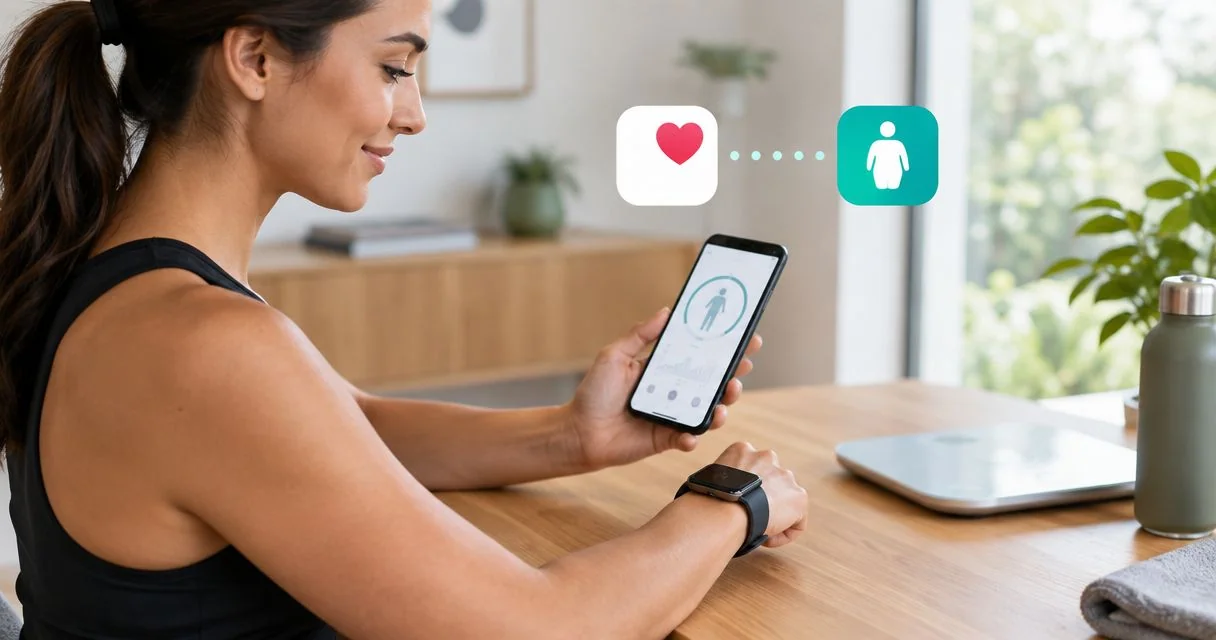
Instead of manually copying every weigh-in between apps, sync weight loss progress with Apple Health by connecting a compatible tracker, enabling the correct weight permissions, and checking a real reading. This 2026 guide separates automatic transfers from manual entry so you can verify your GLP-1 tracking workflow without assuming your clinician receives the data.
- Apple Health is best for consolidating weight records; your GLP-1 tracker must support Apple Health to exchange them.
- To sync weight loss progress with Apple Health, enable Weight permissions and verify the source of a reading.
- VevaRX provides medically supervised GLP-1 weight loss; Apple Health syncing does not establish a connection to your clinician.
- Keep medication doses and symptoms in your prescribed care workflow, separate from automatic weight transfers.
Why this matters
Your weight graph is only useful when its entries have the right dates, units, and source. A connection that imports steps but not weight does not solve your weigh-in workflow. Neither does a permission switch that allows the wrong transfer direction.
VevaRX serves US adults seeking medically supervised GLP-1 weight loss; Apple Health handles the tracking workflow. You can learn about the platform through VevaRX, but an Apple Health connection requires a compatible app. Do not treat a telehealth account as proof of that compatibility.
For your 2026 setup, answer one question first: where should a new weight reading start? The answer determines which app needs permission to write data and which needs permission to read it.
Before you start
- Have an iPhone with Apple Health and a compatible tracker. Confirm that the tracker's documentation specifically includes Apple Health weight support. An account, a connected scale, or a general fitness integration alone does not establish that support.
- Gather access and a real measurement. Sign in to the tracker, have your current measured weight available, and confirm whether your scale reports pounds or kilograms. If you use a connected scale, complete its manufacturer's setup first.
- Check the direction of the connection. Reading weight from Apple Health and writing weight into Apple Health are separate permissions. Some apps support only one direction, and enabling access does not guarantee they import older records.
Keep your prescribed medication schedule separate from this setup. A weight connection does not establish dose tracking, symptom reporting, prescription management, or clinician access.
Choose your weight-record workflow
Apple Health can receive weight from a compatible app or hold a reading you enter yourself. A compatible tracker can then read those records if it supports that function and has permission.
Choose one place to originate each weigh-in. Entering the same measurement in several apps makes troubleshooting harder because you have to distinguish separate records from transfers of the original.
| Workflow | Best for | Advantage | Limitation |
|---|---|---|---|
| Tracker writes weight to Apple Health | People who already log weight in a compatible GLP-1 tracker | Keeps the existing logging habit | Requires the tracker to support writing weight |
| Apple Health supplies weight to a tracker | People using Health as their central weight record | Lets a compatible tracker use existing Health records | Requires read support; historical imports depend on the tracker |
| Manual entry in Apple Health | People without a connected scale or compatible weight-writing app | Gives you a direct, inspectable record | Does not remove manual entry; the tracker still needs read support |
These are transfer patterns, not recommendations to buy a particular app. Select the pattern your existing tools actually support, then test that direction before adding more data sources.
Configure your tracker connection
The tracker's connection screen is the starting point. Apple Health permissions alone cannot add an integration that the tracker does not offer.
- Open your GLP-1 weight tracker and locate its documented Apple Health connection settings. App-specific menu names differ; follow the developer's instructions rather than looking for a universal button.
- Start the Apple Health connection from that screen. If the app presents Apple's permission sheet, inspect the requested data categories before accepting them.
- Enable Weight under the appropriate read or write permissions. For tracker-to-Health transfers, allow writing weight. For Health-to-tracker transfers, allow reading weight.
- Leave unrelated categories disabled unless you deliberately want the tracker to use them. Weight syncing does not require granting every requested category by default.
- Complete the connection in the tracker. Return to its weight screen and check whether it describes importing, exporting, or both.
Expected result: the tracker has the weight access needed for your chosen direction. A connected status is useful, but it is not yet evidence that a reading transferred.
If the tracker has no documented Apple Health integration, stop this connection attempt. Use manual Health entries for your personal record and keep logging in the tracker separately, or choose a compatible tracker after checking its privacy policy and weight support.
Check Apple Health permissions
Use Apple Health to inspect the app's access independently of whatever the tracker says. This is especially useful when a connection was previously declined or changed.
- Open Health on your iPhone and tap your profile picture or initials.
- Under Privacy, tap Apps, then select your tracker. If the app is absent, return to the tracker and initiate its Health connection first.
- Inspect Weight in the available read and write categories. Enable the direction your workflow requires; an app only lists categories it requests.
- Return to the Health weight record. In the current 2026 interface, use Search, then Body Measurements, then Weight. On an interface with Browse, use that tab to reach Body Measurements instead.
- Open Data Sources & Access to inspect the apps and devices associated with weight data.
Expected result: the tracker appears in Apple's permission controls, and its weight access matches the intended transfer. The weight screen gives you a separate place to inspect incoming records.
An app listed as a source has contributed data; that does not prove every subsequent measurement transfers. Keep checking the actual record when you change apps, devices, or permissions.
Verify a weight transfer
Test the workflow with a real measurement, not a made-up weight added just to make the connection look successful. False entries can distort the record you later use for a clinical conversation.
- Record 1 actual weigh-in in the source you chose. Use the measurement's real date and time, and check the displayed unit before saving.
- If the tracker writes weight, open it and complete any documented sync action. If Health supplies weight to the tracker, open the tracker and use its documented import or refresh process.
- In Health, open Weight, then Show All Data. Select the relevant entry and inspect its value, date, and source.
- Check the destination app as well. Confirm that the same measurement appears there, allowing for a different display unit or rounded decimal places.
- If nothing appears, troubleshoot the transfer direction before adding another entry. Repeatedly logging the same measurement does not repair a permission problem.
Expected result: you can identify the originating record and find the corresponding measurement at the destination. That is your evidence of a working connection.
A successful permission prompt is not a successful weight transfer. For a dependable 2026 workflow, inspect both ends instead of relying on a connection badge.
Organize sources and units
A tidy record matters more than the number of connected apps. If 2 apps both write weight, you need to know which one originated each measurement and whether another app copied it.
- Open Weight and inspect Show All Data for overlapping entries. Compare timestamps and source names before deciding that anything is a duplicate.
- Open Data Sources & Access and review the source order. Use Edit where available to reorder sources according to the source you intend to trust.
- Check the weight unit in Health and the tracker. Health can display pounds or kilograms, while the other app has its own display settings.
- If you identify an accidental manual entry, correct it at its origin. Do not bulk-delete your history as a first troubleshooting step.
- Repeat the transfer check after changing the source configuration.
Expected result: your intended source is identifiable, the displayed units make sense, and new measurements no longer require guesswork.
For reference, 1 kilogram equals approximately 2.20462 pounds. A converted value is not automatically a wrong value. Compare the units before reporting a discrepancy or editing a reading.
Source priority helps Health choose which sources to use, but it does not erase stored entries. Inspect the records themselves when resolving duplicates.
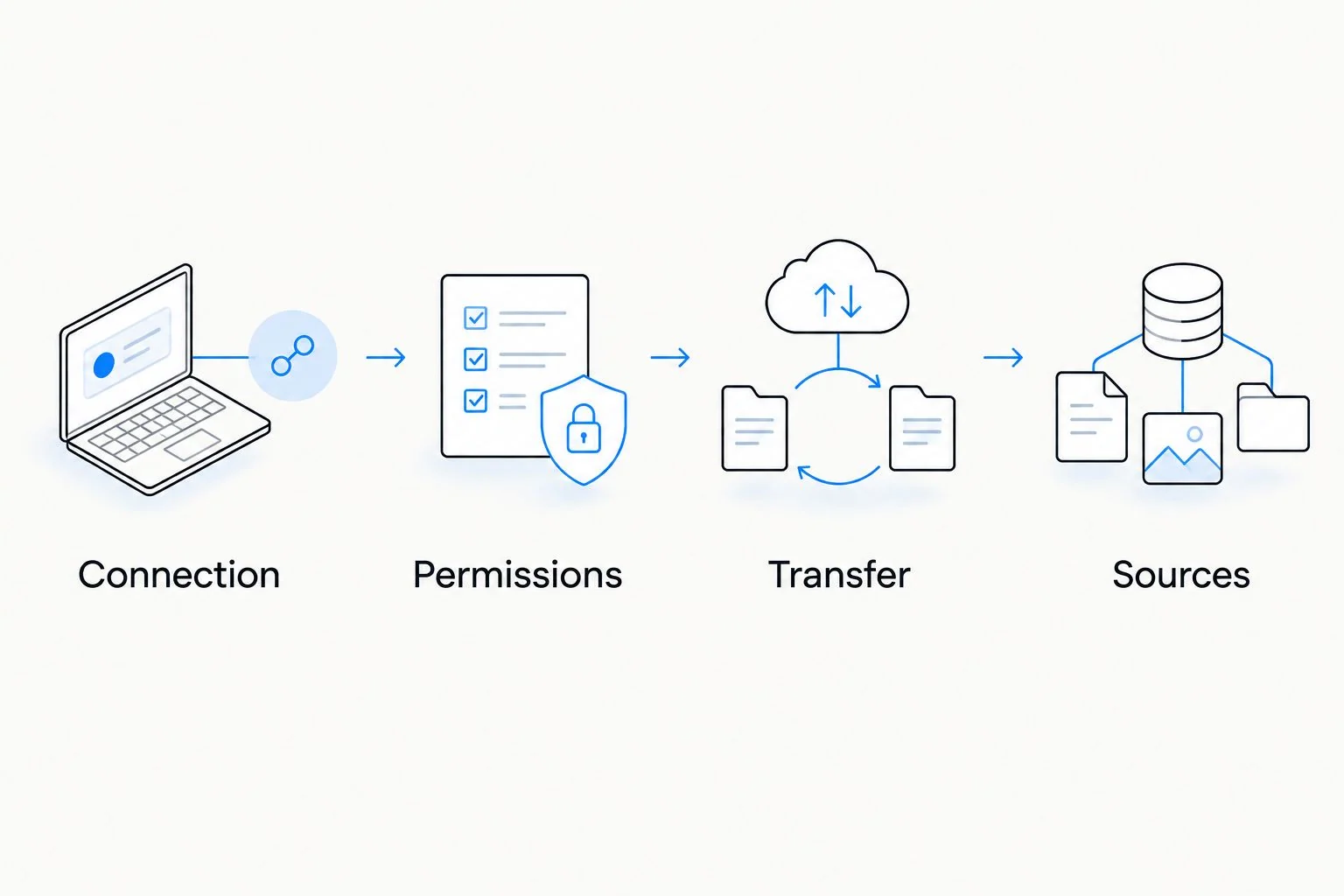
Import new weigh-ins from a connected scale
Best for: people who already use a scale with an Apple Health-compatible companion app. This variant removes manual weight entry, but it adds another connection to verify. The scale usually sends measurements through its companion app rather than directly to your GLP-1 tracker.
- Finish pairing the scale in its manufacturer's app and confirm that a real weigh-in appears there under your profile.
- Enable the companion app's documented Apple Health connection and allow it to write Weight.
- In your GLP-1 tracker, enable Apple Health weight reading, if supported.
- Take a new measurement and check the chain in order: scale app, Health record, tracker record.
- Inspect the source of the Health entry. Confirm it is the intended scale app rather than a separate manual entry.
Expected result: a new scale measurement reaches Health and then becomes available to the compatible tracker. Do not assume the second connection works because the first one does.
With a shared scale, check that the measurement belongs to your profile before syncing it. An incorrectly assigned reading needs correction in the scale's workflow, not an explanation in your weight-loss notes.
Troubleshooting
The tracker does not appear in Health
Initiate the Health connection inside the tracker. Installing an app does not automatically grant Health access. If its documentation does not list Apple Health weight support, there is no weight integration to enable.
Health has the reading, but the tracker does not
Check the tracker's Weight read permission and its documented import behavior. A tracker that writes weight is not necessarily able to read it. Open the tracker and follow its refresh instructions; do not assume every app imports historical records.
The tracker has the reading, but Health does not
Check Weight write permission for the tracker, then inspect Show All Data rather than only the chart. Confirm the app supports exporting the type of weight entry you created and complete any documented sync action.
The weight appears twice or has an unexpected value
Compare each entry's timestamp, source, and unit. Stop entering the same weigh-in independently in multiple apps. Correct confirmed errors at their origin, and verify pounds versus kilograms before changing any measurement.
Weight syncs, but your clinician cannot see it
A successful Health transfer does not establish clinical sharing. Ask your care team how to submit weight records and symptoms. Do not use a personal dashboard as a substitute for the reporting method your clinician requests.
Customize your workflow
For a practical 2026 routine, keep automatic weight transfers separate from the context you discuss with your clinician. A graph can show recorded changes, but it cannot explain missed doses, symptoms, or changes in how you measured your weight.
- Keep measurements comparable. Follow your clinician's weighing guidance and use a consistent measurement routine. Record unusual circumstances when they affect how you interpret an entry.
- Limit data access. Give each app only the Health categories needed for its role, and review permissions when you stop using it.
- Prepare visit notes separately. Follow your care team's instructions for reporting symptoms and medication use. Do not change a prescribed dose because of an app's graph.
- Plan for interruptions. Know how to enter a real weight manually when a device connection fails, and check for duplicates once it resumes.
VevaRX provides medically supervised GLP-1 weight loss, while this guide addresses personal tracking. Confirm the care team's reporting process before assuming your Health records are part of your medical follow-up.
FAQ
How do I sync weight loss progress with Apple Health in 2026?
Use a tracker that supports Apple Health weight data, enable the required Weight read or write permission, and verify a real measurement at both ends. The permission direction must match whether the tracker receives weight from Health or sends it there.
Can Apple Health track my weight without an Apple Watch?
Yes, you can manually record weight in Apple Health on your iPhone without an Apple Watch. Open Weight, tap Add Data, and enter the actual measurement with its correct date and unit.
Does every GLP-1 tracker connect to Apple Health?
No, Apple Health weight syncing requires explicit support from the tracker. Check its documentation for weight reading, weight writing, and historical import behavior before setting it up.
Why is my weight in Apple Health but missing from my tracker?
Check whether the tracker supports reading Weight and has permission to do so. Follow its documented import or refresh process; a working export connection does not establish an import connection.
Can I sync a smart scale with my GLP-1 tracker?
Yes, if the scale's companion app writes weight to Apple Health and the tracker reads weight from Apple Health. Verify the measurement separately in the scale app, Health, and tracker.
Does connecting Apple Health send my weight to my GLP-1 doctor?
No, connecting a personal tracker to Apple Health does not by itself establish clinician access. Ask your care team which reporting or sharing process it uses.
Should I change my GLP-1 dose when my weight graph stops moving?
Do not change your prescribed GLP-1 dose based on a weight graph alone. Discuss your progress, symptoms, and medication use with your prescribing clinician.
One last thing
The source of a reading is more useful than a connected badge. Before trusting your 2026 dashboard, open one recent weight entry and identify where it originated. That small check catches a workflow that looks connected but is still relying on manual records.
Related guides
This article is for informational purposes only and is not medical advice. Compounded medications are not approved by the FDA and have not been reviewed for safety, effectiveness, or quality. Prescription products require an online consultation with a licensed healthcare provider who will determine if a prescription is appropriate. Individual results vary.