
How to connect a smart scale to your telehealth weight loss provider
Set up smart scale telehealth weight loss tracking that reaches your provider. Verify syncing, choose an approved sharing route, and fix missing weight logs.
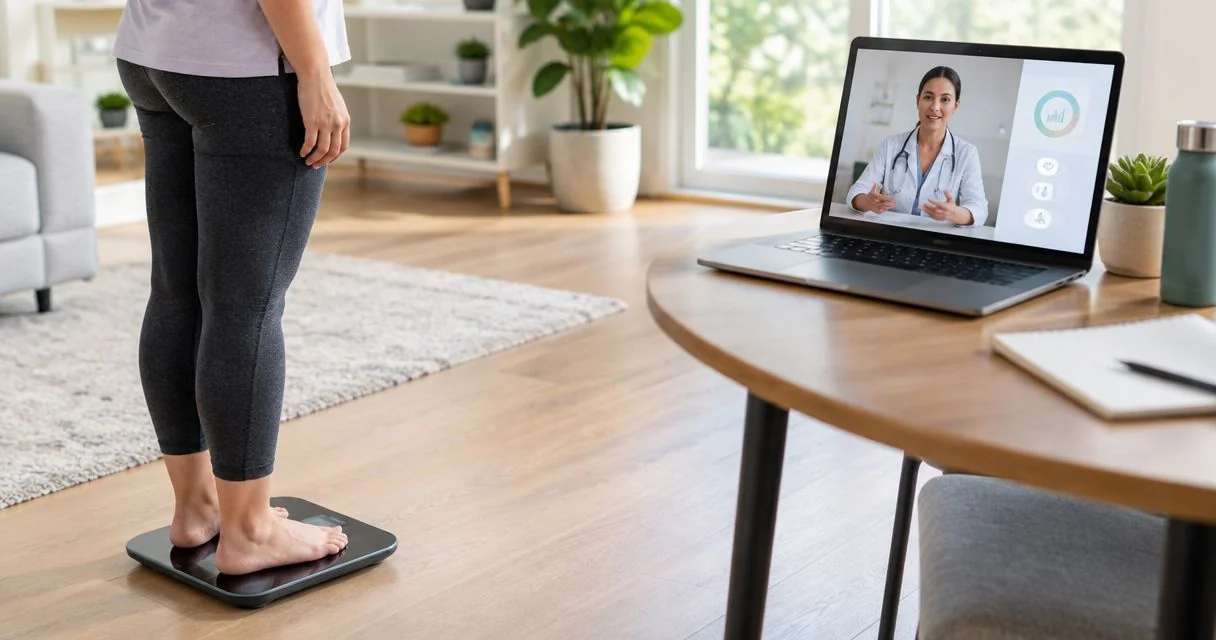
Instead of manually copying every weigh-in into a message, connect your smart scale to its companion app, then use your provider’s supported integration or secure upload process. A smart scale telehealth weight loss workflow is complete only when your care team can access the readings—not when they appear on your phone.
- Smart scale telehealth weight loss tracking needs a verified delivery route, not just successful Bluetooth pairing.
- VevaRX offers medically supervised GLP-1 weight loss; confirm its accepted reporting method before choosing a scale.
- Use a supported integration for automatic sharing, or send a dated weight log through your provider’s approved channel.
- Keep semaglutide or tirzepatide treatment decisions with your prescriber; a scale reading is not a dosing instruction.
Why this matters
Your scale, phone, and provider are separate destinations. Connecting the first two does not automatically connect the third. A weight chart in an app is useful for personal tracking, but it is not proof that your clinician received it.
VevaRX is for US adults seeking medically supervised GLP-1 weight loss through telehealth. If you use VevaRX, ask which reporting method your care team accepts before configuring automatic sharing. Choose the workflow around the clinical destination, not the scale’s feature list.
For your 2026 setup, separate two questions: can the scale record your weight, and can the provider receive that record? This guide takes you through both without assuming that every telehealth platform supports connected scales.
Before you start
- Gather the essentials: your smart scale, its manufacturer’s companion app, a compatible phone, and access to your provider’s approved patient communication channel. Follow the scale’s documentation for power, placement, and phone compatibility.
- Confirm the destination first: ask whether the provider accepts a direct connection, a phone health-app connection, a file upload, or a manually entered weight log. Also ask whether submitted readings are reviewed between appointments or only at follow-up.
- Catch the household-profile problem: a shared scale can assign a reading to the wrong person. Create or select your own profile and verify the assigned user before sharing any measurement.
Do not enter your patient-portal password into a third-party connector unless your provider explicitly supports that connection. A compatible-looking app is not confirmation of an approved clinical integration.
Choose your sharing route
There are three practical routes. Use the route your provider accepts, even if another option sounds more automatic. For a 2026 workflow, confirm current compatibility rather than relying on an old setup video.
| Sharing route | Best for | Advantage | Limitation | What proves it works |
|---|---|---|---|---|
| Supported direct integration | Patients whose provider explicitly supports their scale or app | Reduces repeated manual entry | Depends on the provider’s supported connection and permissions | The provider-facing record contains the test reading |
| Phone health-app connection | Patients whose provider accepts data from that health app | Brings compatible measurements into a shared phone record | Scale-to-phone syncing alone does not deliver data to the clinician | The provider confirms receipt through its supported route |
| Secure weight-log upload | Patients without an approved automatic connection | Gives you control over the dates and information submitted | Requires repeated uploads or entries | The submitted log is visible in the approved patient channel |
A direct integration is not automatically the best clinical workflow. If readings arrive in a place nobody monitors, automation solves the copying problem but not the communication problem.
Manual reporting has a real advantage: you can include symptoms and context alongside the weight trend. Its drawback is the extra work. Automatic reporting reduces that work, but it still needs a clear review schedule and a way to report concerns separately.
Scale connection
Configure your scale’s recording app
- Install the companion app identified in the scale manufacturer’s instructions. Use the official app listing rather than a similarly named third-party tracker.
- Sign in or create your personal account, then select your own user profile. Check that the profile’s units match the units you intend to report.
- Add the scale using the manufacturer’s pairing instructions. Grant Bluetooth access when required; configure Wi-Fi only if your model supports or requires it.
- Place the scale on the surface specified in its instructions. Take 1 test reading and wait for the measurement to finish before stepping away.
- Open the app’s measurement history. Check the weight, date, unit, and assigned person against the reading you just took.
Expected result: the companion app contains one correctly attributed weight measurement. If the display shows a reading but the app does not, fix the scale-to-app connection before setting up provider sharing.
Button names differ between scale manufacturers, so use your model’s instructions for the pairing controls. Do not substitute an unrelated app’s menu labels or assume that Bluetooth pairing means cloud synchronization is enabled.
Phone health permissions
Configure Apple Health when your scale supports it
Use this route only if your scale’s companion app supports Apple Health. A provider must separately support receiving data from that destination; Apple Health is not a universal telehealth connector.
- Open the companion app and find its documented Apple Health connection. Enable weight sharing using the manufacturer’s instructions.
- On your iPhone, open Health, tap your profile picture or initials, and select Apps under Privacy. Select the companion app and inspect its requested permissions.
- Allow the app to write Weight if that permission is available and you want the measurements recorded there. Leave unrelated data permissions off unless you have a specific reason to enable them.
- In Health, open Browse, select Body Measurements, then Weight. Check whether the test measurement appears.
- Open Show All Data to inspect the recorded entry. Check its date and value, and review Data Sources & Access when you need to identify contributing sources.
Expected result: Apple Health contains the correct weight entry from the intended source. This verifies the phone health-app stage—not provider receipt.
For a 2026 phone setup, use the current in-app instructions if an operating-system update changes a navigation label. On other phone platforms, follow the scale manufacturer’s documented health-data connection rather than assuming the Apple Health steps apply.
Do not grant access to every health category just to make the connection work. Sharing weight does not require you to deliberately share unrelated records with every connected app.
Provider delivery
Configure the clinical destination
- Ask your provider which route it supports for home weight readings. Name the scale and companion app so the answer addresses your actual setup.
- If a supported integration exists, start from the provider’s official instructions. Check the account being connected and the data categories requested before authorizing access.
- If the provider uses uploads instead, prepare a dated weight log in its accepted format. Include measurement date, weight, and unit; add measurement time when requested or useful for interpretation.
- Submit the test reading through the approved destination. Do not send health information to an address or account found in an unofficial discussion thread.
- Confirm that the submitted reading appears in the patient-facing record, if one is available. Ask the care team to verify receipt when you cannot inspect the clinical destination yourself.
- Agree on the reporting schedule and the separate process for symptoms or urgent concerns. Receiving data and reviewing data are different tasks.
Expected result: your provider can access the test measurement through an accepted channel, and you know when the team reviews submitted information.
A weight log should be readable without opening your scale app. Include units on every entry or clearly in the column heading; an unlabeled value is not a complete measurement.
For VevaRX weight-loss care, confirm the accepted reporting route directly rather than assuming a particular scale connection exists. Telehealth prescribing and device integration are separate capabilities.
End-to-end verification
Verify the complete measurement path
- Compare the same test measurement in the companion app and the provider’s accepted destination. If you use a phone health app in between, inspect that entry too.
- Check the person, measurement date, value, and unit at each stage. Distinguish the weigh-in timestamp from the later upload timestamp.
- Identify duplicate entries before reporting a trend. Check whether both manual entry and automatic syncing recorded the same weigh-in.
- Keep 2 verification checkpoints: the scale’s recording app and the provider-facing destination. Add the phone health app as an extra checkpoint when your route uses it.
- Repeat this check after changing phones, reconnecting accounts, replacing the scale, or changing providers.
Expected result: one real measurement follows the intended path with the correct identity and units. You also know where to look when a future reading goes missing.
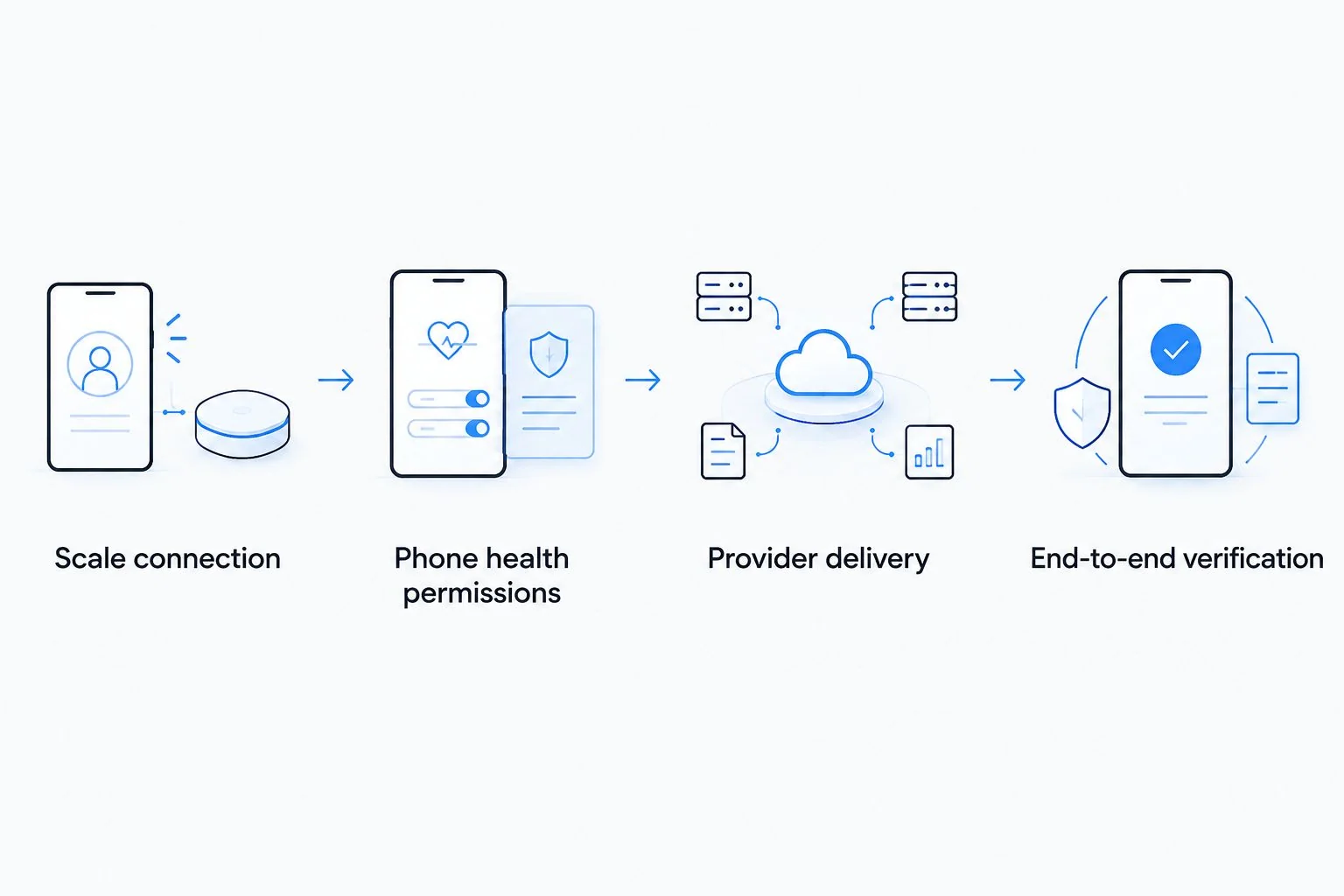
The workflow is scale recording, optional health-app storage, provider delivery, and receipt verification. Complete those stages in order; troubleshooting the last stage cannot repair a reading that never reached the first app.
Second workflow: share a weekly weight log
Best for: patients whose provider accepts uploads but does not support an automatic scale connection. This route keeps the scale’s recording benefits without pretending there is a live clinical integration.
Use a 7-day reporting window as an organizational example, not a required medical schedule. Follow your clinician’s requested interval when it differs, and do not delay reporting symptoms until the next planned upload.
- Record readings in your companion app using the measurement routine agreed with your clinician.
- At the reporting interval, use the app’s documented export feature if one exists. Otherwise, enter the readings into a simple log containing dates, weights, and units.
- Remove another household member’s measurements and resolve obvious duplicate entries. Do not delete an unexpected reading merely because you dislike the result.
- Upload the file or enter the values through the provider’s approved channel. Include relevant context, such as a missed measurement or a change in weighing conditions.
- Confirm submission and retain the reporting dates so your next log covers the correct period.
Expected result: the provider receives a dated, interpretable weight record. You retain control over what you submit, but the process remains manual.
If the provider accepts screenshots, make sure the dates and units remain visible. A cropped graph without its labels is harder to interpret than a short table of measurements.
Troubleshooting
The scale records weight, but the companion app stays empty
Check power, pairing, the selected user, and any permissions required by the manufacturer. Follow the model’s documented reconnect procedure, then repeat the test measurement. Do not keep configuring downstream sharing while the recording app is missing data.
Weight appears in the phone health app, but not at the provider
Confirm that the provider actually supports that health-app connection. If it does, check the provider-side authorization and account. If it does not, switch to its approved upload or entry process; additional phone permissions cannot create a clinical integration.
The record contains the wrong person or unit
Stop sharing until the source record is corrected. Check the scale profile and the unit settings in each destination. If incorrect information already reached the provider, send a correction through the approved channel rather than silently changing only your local copy.
The same weigh-in appears more than once
Inspect the contributing sources and timestamps. A manual entry and an imported reading can represent the same measurement. Choose a primary recording route and stop the redundant entry process; confirm the duplicate before deleting anything.
Sharing stops after an account or phone change
Recheck app permissions and reconnect using official instructions. Verify the first new reading at every destination instead of assuming the old authorization transferred. A successful sign-in alone does not prove data delivery has resumed.
Customize your workflow
Build your 2026 routine around the follow-up conversation. Ask your clinician what information belongs alongside weight readings and how often to report it. Keep symptom reporting separate from passive data collection.
For VevaRX patients, smart-scale tracking supports the conversation about prescribed treatment; it does not determine eligibility, medication choice, or dose. Do not change semaglutide or tirzepatide treatment because of a scale alert. Follow your prescriber’s instructions.
Use the telehealth consult-to-prescription workflow to place measurement sharing within the broader care process. A tidy chart is useful only when it reaches the right clinical conversation.
FAQ
How do I connect a smart scale to my telehealth weight loss provider?
Connect the scale to its companion app, then use the integration or secure reporting route your provider accepts. Verify that the provider receives a test reading; phone syncing alone does not complete the connection.
Does VevaRX connect directly to smart scales?
Confirm current smart-scale compatibility directly with VevaRX before configuring a connection. Use the care team’s accepted reporting method rather than assuming a direct integration exists.
Can Apple Health send my weight to my doctor automatically?
Apple Health can support that workflow only when your provider has a compatible, authorized receiving connection. Recording weight in Apple Health does not automatically place it in your clinician’s record.
What should I do if my provider does not support my smart scale?
Use the provider’s approved weight-log upload or manual-entry process. Include measurement dates, weight values, and units so the record remains interpretable outside the scale app.
How often should I weigh myself during GLP-1 treatment?
Follow the measurement and reporting schedule agreed with your prescribing clinician. Consistent weighing conditions help interpretation, but taking more readings does not replace clinical follow-up.
Should I change my semaglutide or tirzepatide dose when my weight stops dropping?
No—do not change your prescribed dose based on a scale trend. Contact your prescriber to discuss your progress, symptoms, and treatment plan.
Do smart-scale body-fat readings replace medical assessment?
No—consumer smart-scale body-fat readings are estimates, not a replacement for medical assessment. Share them only when your clinician requests them, and distinguish them from measured body weight.
What is the safest way to share a weight log with my provider?
Use the secure communication or upload channel your provider approves. Check that the record belongs to you and contains the correct dates and units before submitting it.
One last thing
A delivery timestamp is not a review timestamp. Your provider can receive a reading without reviewing it immediately, so ask who checks incoming logs and when. For your 2026 workflow, that answer matters more than another automatic sync setting.
Related guides
This article is for informational purposes only and is not medical advice. Compounded medications are not approved by the FDA and have not been reviewed for safety, effectiveness, or quality. Prescription products require an online consultation with a licensed healthcare provider who will determine if a prescription is appropriate. Individual results vary.