
How to connect Google Calendar to your weekly GLP-1 injection schedule
Set a Google Calendar GLP-1 injection reminder with a weekly event. Follow setup steps, test alerts, protect privacy, and handle schedule changes.
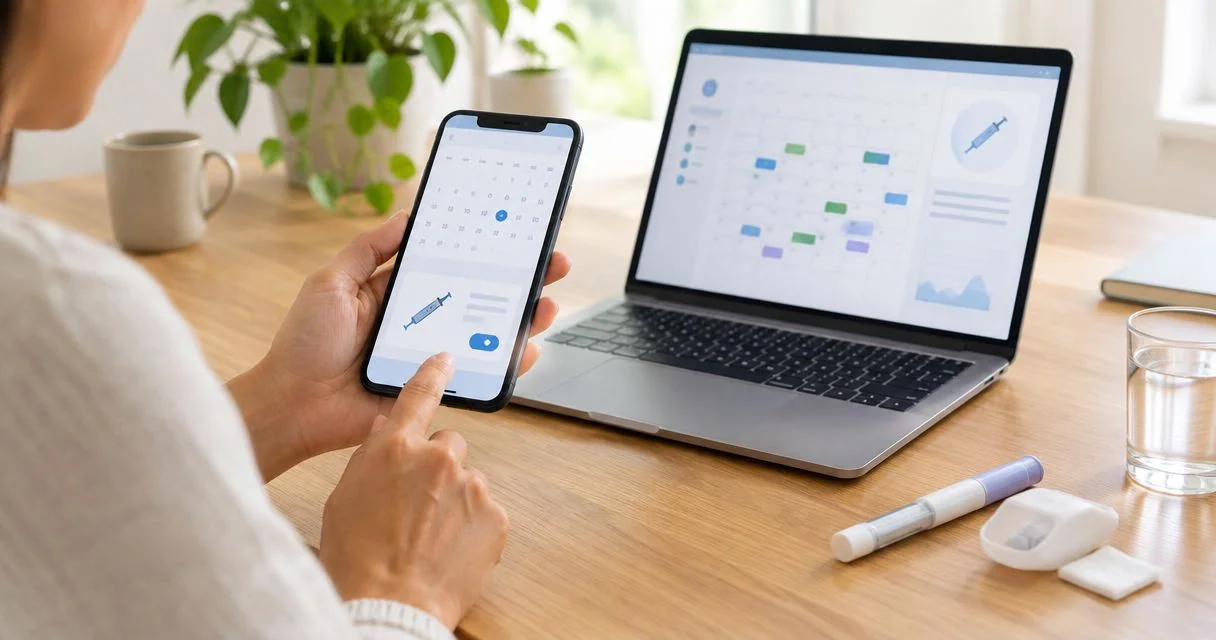
Instead of manually remembering injection day each week, set a Google Calendar GLP-1 injection reminder as a recurring event with notifications. This guide shows you how to build and test the reminder, protect your privacy, and update the calendar when your prescriber changes your schedule.
- Use a recurring Google Calendar event for a weekly GLP-1 injection reminder, not as proof you took medication.
- VEVArx offers medically supervised GLP-1 weight-loss care for US adults; calendar reminders do not replace prescribing instructions.
- Choose a timed event, add notifications, and test delivery on the phone you actually use.
- Change injection timing only according to your medication instructions and your prescriber's guidance.
Why this matters
A calendar answers one question: when did you plan to take your medication? It does not answer whether you took it, whether the dose is correct, or what to do after a missed dose.
VEVArx is best suited to US adults seeking online, medically supervised GLP-1 weight-loss care. VEVArx offers doctor-prescribed medications; this Google Calendar setup is a separate reminder workflow, not a prescription-system connection.
For your 2026 routine, keep the responsibilities separate: your prescriber sets the treatment plan, your calendar prompts you, and your medication record documents what actually happened. An alert is helpful. An alert mistaken for a completed dose is not.
Curious whether you qualify? A licensed provider makes the final call.
Start My Pre-AssessmentBefore you start
- Have your prescribed schedule and medication instructions ready. Confirm that your medication is prescribed weekly. Do not apply this workflow to a medication with a different dosing schedule.
- Use a Google account and a phone that receives its calendar notifications. The steps below use Google Calendar in a desktop browser, followed by a delivery test on your phone. Google changes interface wording; mobile menus differ.
- Check which calendar you are using before entering health information. A work account, shared calendar, or lock-screen preview can expose an event title. A recurring event also does not record medication administration, even after its scheduled time passes.
Keep your medication name, prescribed dose, and missed-dose instructions in a secure record you can access. You do not need to put those details into the event title or description to make the reminder useful.
Choose your reminder format
Use a timed recurring event for the main reminder. It gives you a scheduled time and advance notifications without requiring a connection to a telehealth account.
| Reminder format | Best for | Advantage | Limitation |
|---|---|---|---|
| Timed recurring event | A weekly injection-day prompt | Supports a scheduled time and event notifications | Does not confirm that you took medication |
| Recurring Google Task | A separate personal checklist | Lets you mark a task complete | Completion still depends on your entry; it is not a clinical medication record |
| All-day event | A general day marker | Keeps the day visible on your calendar | Does not anchor the reminder to a specific injection time |
These are organization options, not different treatment schedules. A timed event is the main workflow below; a separate completion record prevents you from confusing a planned injection with an administered one.
For a 2026 setup, start with one reminder system you will maintain. Adding overlapping events and tasks before testing either creates more places to check without creating a better medication record.
Weekly event setup
Build the recurring event in Google Calendar on a computer first. The larger editing view makes the calendar selection, recurrence, and notification settings easier to review together.
- Select Create, then Event. Open More options for the full event editor.
- Enter a neutral title such as Weekly check-in. Choose wording you recognize without disclosing medication details on your lock screen.
- Select the first date that matches your current prescribed schedule. Set a specific start time, and leave All day unchecked.
- Open Does not repeat and choose the weekly option for your selected weekday. If you use Custom, set the recurrence to every 1 week on that day.
- Check the calendar selector and choose a personal calendar whose sharing settings you understand. Leave Guests empty unless you deliberately want to share the event.
- Select Save, then inspect the next occurrence to confirm that it lands on the intended day and time.
Expected result: your calendar shows one repeating weekly event, beginning on the correct date, with no unintended guests.
A weekly recurrence repeats every 7 days. That calendar interval is appropriate only when it matches your prescribed instructions; it does not authorize starting treatment or changing injection day.
Do not put a planned dose increase into the title. A recurring label can outlast a prescription change and become an inaccurate instruction.
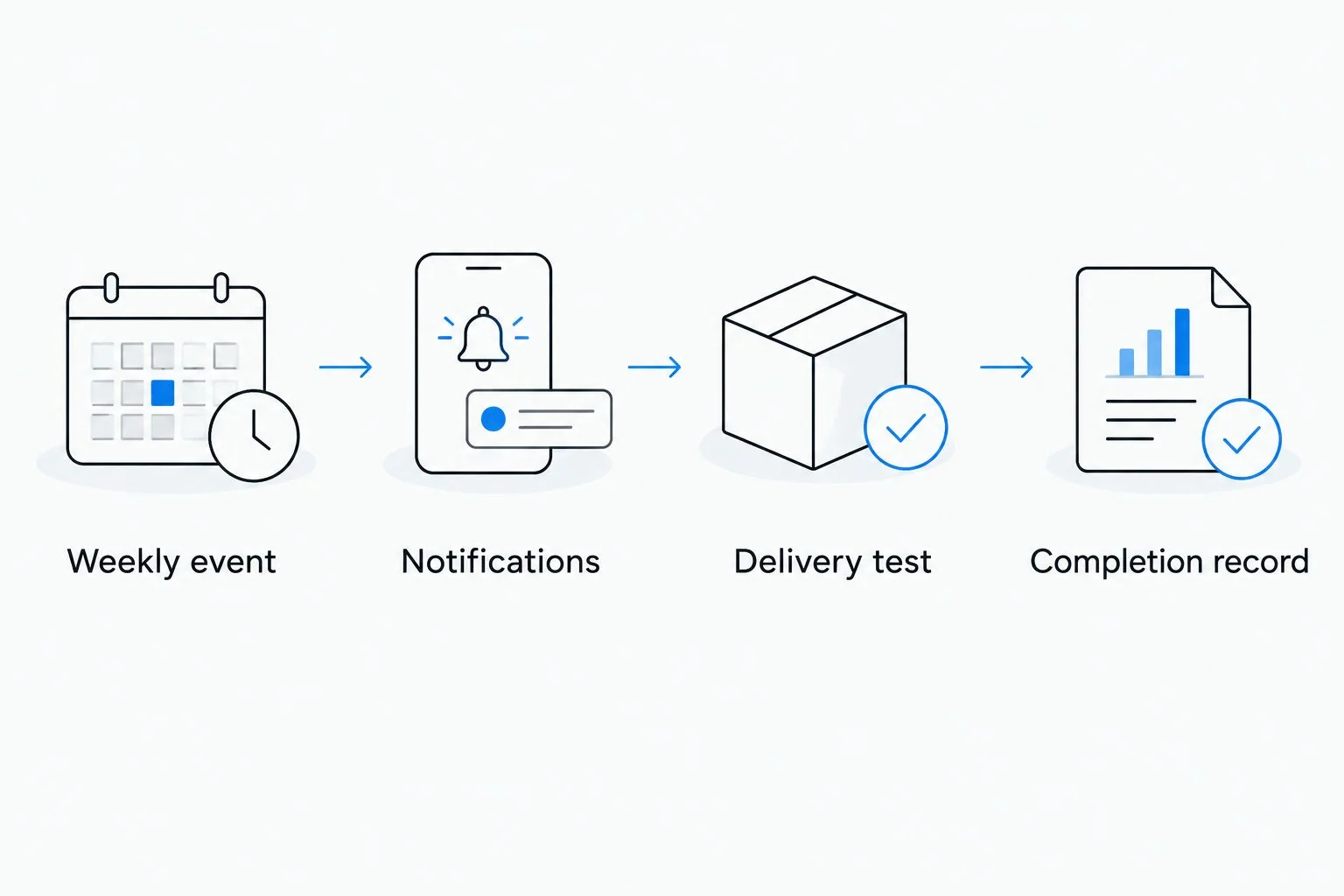
Notifications and privacy settings
Configure notifications inside the event rather than assuming the calendar's default alert will suit your routine. An event can appear correctly on screen while its notifications remain disabled on your phone.
- Open the recurring event and select Edit event.
- Select Add notification. Choose Notification for a device or browser alert rather than relying only on email.
- Set an advance alert that fits your routine. For example, choose 30 minutes before the event as a preparation prompt; this is an organizational choice, not a medication requirement.
- If useful, select Add notification again and set another alert 10 minutes before the event. Both alerts should refer to the same scheduled event, not separate dosing events.
- Find Default visibility and choose Private where that option is available. Then select Save and apply the notification change to All events if you want it throughout the series.
Expected result: the event editor shows your intended notification timing, and the recurring series retains those settings.
Private visibility is not a substitute for choosing the right account. Calendar owners, account administrators, sharing permissions, and device previews affect who can see information. Avoid sensitive details even when you select Private.
In your 2026 setup, also review notification permissions in your phone's system settings. Allow Google Calendar notifications, check whether previews reveal event content, and review any focus or do-not-disturb settings that silence alerts.
Delivery test and completion record
Test the alert before relying on the weekly series. Seeing an event on your laptop does not prove your phone will notify you.
- Create a separate, one-time event titled Reminder test, starting 5 minutes from now. Add a notification for the event's start time.
- Confirm that the test uses the same calendar and Google account as your weekly event. Save it, then lock your phone and wait for the alert.
- Check that the notification appears where you expect. If it does not, fix permissions or account selection before continuing.
- Delete the test event after confirming delivery. Reopen the weekly event and verify its date, recurrence, and notification settings once more.
- Choose a separate completion record. After administering medication according to your instructions, record the actual date, time, and prescribed dose there—not merely that an alert appeared.
Expected result: a real notification reaches your phone, and you know where you will document an administered dose.
A secure medication log or an appropriate tracking app can separate planned dates from completed injections. The guide to tracking your GLP-1 doses with an app covers that adjacent workflow.
Do not treat a dismissed notification as a completed injection. Dismissing an alert only clears the alert; it does not document administration or communicate with your prescriber.
Schedule-change workflow
Google Calendar does not know when your prescription changes. Update the reminder only after you have clear instructions for the new schedule.
- Confirm the new date and timing with your prescriber or the instructions for your exact medication. Do not use calendar convenience to decide the interval between injections.
- Open the first future event that needs changing and select Edit event. Adjust its date or time to match the approved plan.
- Select Save. When Google Calendar asks which recurring events to update, choose This and following events for an ongoing change, or This event for an isolated calendar adjustment that matches your instructions.
- Review the next scheduled occurrence. Check that the old future reminder is not still appearing on another calendar or in a second series.
Expected result: future reminders match the new approved schedule, without leaving duplicate prompts behind.
This updates the calendar only. It does not update a prescription, notify a clinician, or prove a dose was administered.
For travel in 2026, review the event's time zone before departure. A calendar can display an event at a different local time when you travel; ask your prescriber how to handle medication timing rather than guessing from the displayed clock time.
Find out if GLP-1 treatment may be right for you.
Start My Pre-AssessmentTroubleshooting
The event appears, but your phone stays silent
Check that your phone uses the same Google account and displays the calendar containing the event. Then review Google Calendar's notification settings, your phone's notification permissions, and focus settings.
Run another one-time delivery test after making changes. Do not wait until the next injection day to discover whether the fix worked.
You receive duplicate reminders
Open each alert and identify its source. Two configured notifications on one event are different from two separate recurring event series.
Keep the intended series and remove accidental duplicates. If both Google Calendar and another calendar app display the same account, review which app should deliver the alert rather than deleting the underlying schedule without checking.
Only one occurrence changed
You likely edited a single event rather than the future series. Open the first affected future occurrence and apply the approved change using This and following events.
Inspect the next occurrence afterward. Do not select All events automatically if doing so would rewrite calendar entries you want to preserve.
The event shifts when you travel
Check the event's time zone and your device's current time zone. Displayed local time and your intended medication timing are not always the same thing.
Ask your prescriber how to maintain your schedule across travel. Do not move an injection closer to another dose simply to restore a familiar local clock time.
You dismissed the alert and cannot remember taking the dose
Check your medication record, not the event's position on the calendar. A past event is not evidence that an injection happened.
If you remain unsure, contact your prescriber or pharmacist for instructions before taking another dose. Never take an extra injection just because the reminder is still visible.
Customize your workflow
Add supporting reminders only after the core weekly alert works. Useful additions include a clinician-requested check-in, a separate symptom note, or a reminder to review prescription instructions before an appointment.
Keep those events distinct from the injection reminder. A follow-up appointment, refill request, and medication administration serve different purposes; combining them into one recurring event makes the calendar harder to interpret.
For VEVArx GLP-1 care, use your clinician's instructions as the source of treatment decisions. A personal calendar is an organizational layer, not a channel for reporting symptoms or requesting prescription changes.
Review the setup whenever your medication, schedule, device, or account changes. Your 2026 calendar should reflect your current plan—not preserve an old routine because the event keeps repeating.
Have questions about your options? Start with a quick online assessment.
Start My Pre-AssessmentFAQ
What's the best Google Calendar GLP-1 injection reminder setup?
Use a timed weekly recurring event with tested notifications and a neutral title. Keep a separate medication record because a calendar event does not confirm that you took a dose.
Does Google Calendar connect directly to VEVArx prescriptions?
This workflow does not connect Google Calendar to VEVArx prescriptions. You enter the schedule manually and update it when your prescriber changes your instructions.
Can I use this reminder for semaglutide or tirzepatide?
Use this weekly reminder only when your prescribed semaglutide or tirzepatide instructions specify weekly dosing. Follow the instructions for your exact medication rather than treating the calendar as dosing guidance.
Will Google Calendar know whether I took my injection?
No, an event notification does not confirm medication administration. Record the actual date, time, and prescribed dose in a separate medication record after taking it.
What should I do if I miss the injection reminder?
Check your medication record and follow the missed-dose instructions for your exact medication. If the instructions are unclear or you are unsure whether you already injected, contact your prescriber or pharmacist before taking another dose.
Can I change injection day by dragging the calendar event?
Moving an event changes only the reminder, not your prescribed schedule. Confirm an appropriate medication-timing change with your prescriber or medication instructions before editing the event.
How do I keep my injection reminder private?
Use a personal calendar with appropriate sharing settings, a neutral event title, and restricted lock-screen previews. Private event visibility alone does not eliminate access through account permissions or a shared device.
One last thing
A recurring event keeps repeating even when your treatment stops. If your prescriber pauses or ends treatment, remove or end future injection reminders after confirming the instructions, and preserve your actual administration history separately.
That distinction matters more than the alert sound: the calendar records a plan, while your medication log records what happened.
Related guides
Ready to get started?
See if doctor-prescribed GLP-1 treatment may be right for you. It only takes a few minutes, 100% online.
Start My Pre-AssessmentThis article is for informational purposes only and is not medical advice. Compounded medications are not approved by the FDA and have not been reviewed for safety, effectiveness, or quality. Prescription products require an online consultation with a licensed healthcare provider who will determine if a prescription is appropriate. Individual results vary.