
How to connect MyFitnessPal to your GLP-1 weight loss plan
Build a MyFitnessPal GLP-1 weight loss plan with clinician-set goals, consistent food logs, and a clear review routine. Track nutrition without changing doses.
Instead of manually reconstructing what you ate before every appointment, build a MyFitnessPal GLP-1 weight loss plan that records meals against clinician-set goals and turns those entries into a repeatable review. Use MyFitnessPal for food tracking, then share a summary through your clinician’s accepted channel—not as an automatic prescription or dose-management system.
- A MyFitnessPal GLP-1 weight loss plan works best with clinician-set nutrition goals and consistent food logging.
- VevaRX suits US adults seeking medically supervised GLP-1 weight loss online.
- Review food intake, symptoms, and weight trends together; calorie totals alone do not guide medication changes.
- Connected activity data supports tracking, but does not replace a clinical review.
Why this matters
GLP-1 treatment can reduce appetite, but a lower calorie total does not tell you whether you are eating adequately. Your clinician needs context: what you actually ate, how you felt, and whether symptoms made eating or drinking difficult.
VevaRX is best suited to US adults seeking medically supervised GLP-1 weight loss through an online telehealth platform. Use VevaRX for the medical-care side of the plan and MyFitnessPal for the food-recording side. Keep those responsibilities separate.
For your 2026 setup, define “connect” as a practical workflow: record information, check it, and bring it to a clinical review. Connecting an app to a health-data source is a different task from sharing information with a prescriber. Neither action gives a tracking app authority to change your treatment.
Before you start
- Access: Have your MyFitnessPal account, your current prescription instructions, and the communication channel your clinician accepts. Confirm whether the clinician wants a written summary, screenshots, or another format before sending health information.
- Targets and materials: Gather clinician-approved nutrition goals, package labels or recipe ingredients, and any weight records you already keep. Ask which measurements matter before building a dashboard around them.
- The gotcha: MyFitnessPal’s calculated calorie allowance is not a personalized GLP-1 treatment instruction. Activity connections can also affect the allowance shown in the app. Do not treat a changing app number as permission to eat less, eat more, or alter medication.
If tracking food increases anxiety or encourages restrictive eating, raise that with your clinician before starting. A different monitoring method can focus on meal regularity, symptoms, and clinical follow-up instead of calorie counting.
Set up your nutrition goals
Your first configuration unit is the nutrition target, not the medication schedule. Start with the goals your clinician has approved and use the app to organize them.
- Confirm the plan. Ask your clinician what you should track: overall intake, protein, meal regularity, hydration, weight, or a combination. Also ask what should prompt you to contact the care team rather than wait for the next appointment.
- Open MyFitnessPal’s Goals section. Use Goals to review the nutrition targets associated with your account. Menu placement varies between the mobile app and website, so use the label rather than copying a path from another device.
- Review the calorie goal. Compare the displayed target with your clinician’s instructions. Do not choose a more aggressive weight-loss setting simply because medication has reduced your appetite.
- Review nutrient targets. Enter the clinician-approved values wherever your version permits customization. If a required setting is not editable, keep the clinician’s target in your review notes and compare your food log against it.
- Write down the source. Record that the targets came from your clinician, along with the date they were agreed. Update this note whenever the medical plan changes.
Expected result: You can distinguish your clinical targets from app-generated estimates. A difference between those numbers is a question for your clinician, not a reason to improvise.
For a 2026 review routine, keep the target date beside your summary. Otherwise, an old screenshot can make a changed nutrition plan look current.
Keep medical decisions outside the app
Do not use MyFitnessPal to decide whether to increase a dose, delay an injection, or compensate for a missed dose. Follow the prescription instructions and ask your prescriber about medication questions.
The same boundary applies when weight loss slows. A plateau does not establish that you need a different dose or a lower calorie target. Your clinician should interpret weight trends alongside intake, symptoms, medication use, and relevant medical history.
Configure your food diary
A useful food diary captures what you consumed, not what you intended to consume. Keep the entry method simple enough to repeat when appetite is low or your schedule changes.
- Open the daily record. Select Diary, check the date, and choose the meal you are recording. This prevents a late-night entry from landing on the wrong day.
- Add the food. Select Add Food and search for the food or ingredient. For packaged foods, compare the entry with the package label rather than choosing the first search result.
- Check the serving. Review Serving Size and Number of Servings before adding the entry. Match the portion you ate; a whole package and one labeled serving are not always the same amount.
- Handle mixed meals consistently. For a homemade dish, use a saved recipe or record the main ingredients. For a meal without a reliable label, use the closest reasonable entry and identify it as an estimate in your review notes.
- Correct leftovers. If you logged a planned portion but ate less, edit the entry. GLP-1 appetite changes make this distinction especially relevant: a full plate recorded as eaten can hide low intake.
- Review the day. Open Nutrition to inspect the information available in your version. Look at the pattern of meals and relevant nutrients, not only the calorie total.
Expected result: Your diary represents actual intake closely enough to support a conversation. Estimates remain estimates; they should not become false precision in a clinical summary.
Start with 7 consecutive days as a practical logging exercise, unless your clinician requests another interval. Include ordinary workdays and days when your routine changes. The purpose is to establish a repeatable habit, not to produce a perfect score.
Use one consistent approach for recurring meals. Switching between unrelated database entries for the same breakfast makes changes in the log harder to interpret.
Configure your clinical review
The connection to your care plan happens when the food record becomes a useful clinical summary. Sending every screen without context makes the important details harder to find.
Use these four review headings: Food intake, Symptoms, Weight trend, and Clinical review. They keep nutrition observations separate from treatment decisions.
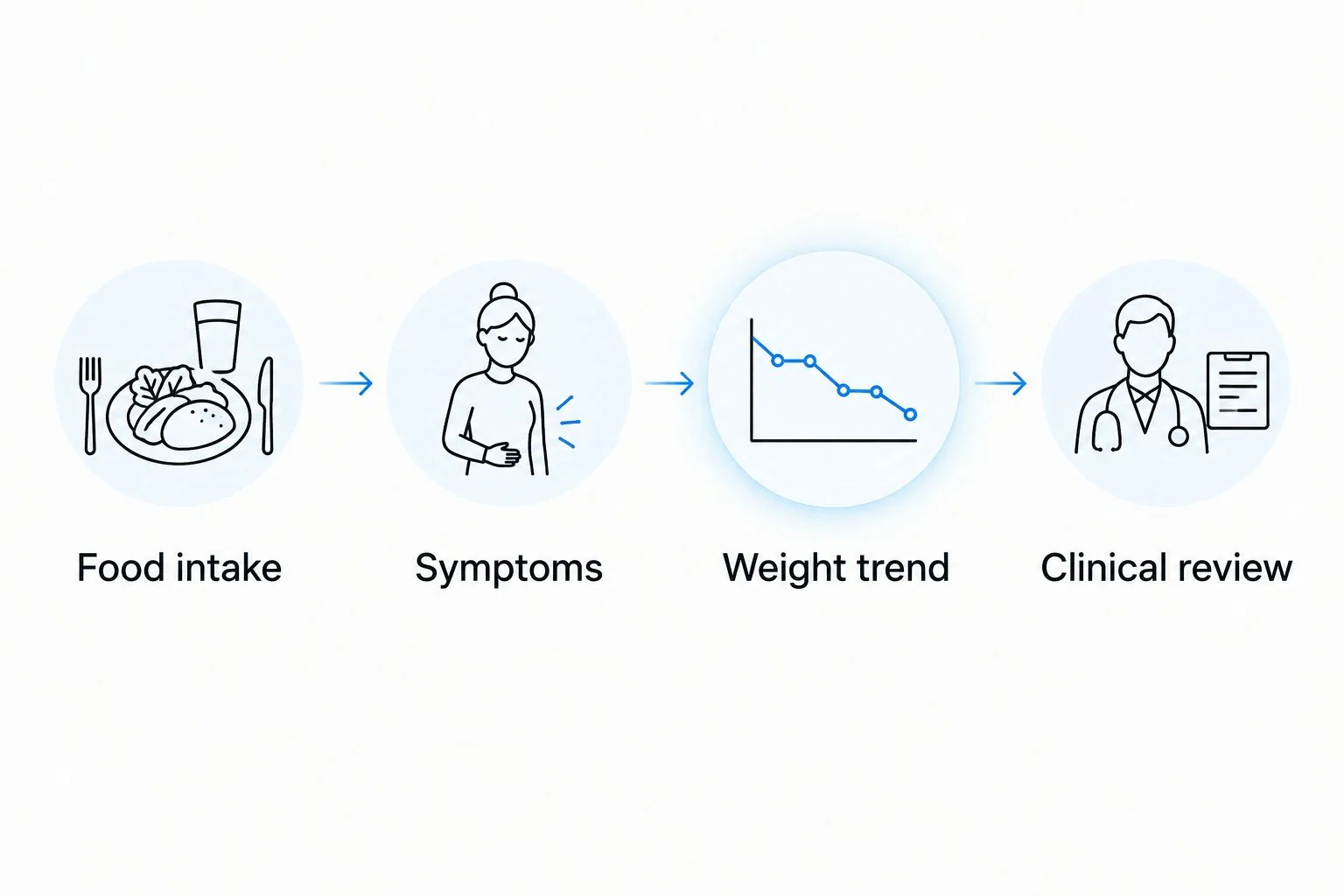
- Choose a review interval. Use 1 weekly review as a starting organizational routine, then follow the appointment and communication schedule your clinician sets. A weekly summary is not a substitute for reporting urgent symptoms.
- Check completeness first. Identify missing meals, estimated portions, and days without entries. Do not interpret an empty diary as a day without food.
- Summarize food intake. Describe meal regularity and whether eating became difficult. Include the nutrition measures your clinician requested, rather than adding every available metric.
- Add symptom context. Record what happened and when: nausea after a meal, vomiting, constipation, or difficulty drinking. Keep this in a separate note if your food diary does not support the detail you need.
- Add the weight trend. Include consistently collected measurements if weight tracking is part of your plan. Mark unusual circumstances rather than interpreting every fluctuation as a treatment result.
- Send the agreed format. Use the channel your clinician accepts. Confirm the recipient before sharing screenshots, and remove unrelated personal information.
Expected result: Your clinician receives a readable summary of intake, symptoms, and trends, with clear questions requiring medical judgment.
VevaRX provides medically supervised GLP-1 weight-loss care; MyFitnessPal supplies the food record in this workflow. Do not assume that installing a tracking app sends its data to your VevaRX clinician. Confirm how the care team wants to receive your summary.
For your first 2026 review, ask one specific question: “Does this intake pattern match the nutrition plan you want me to follow?” That is more actionable than asking whether your diary looks good.
Add activity data without changing the treatment plan
A second workflow adds connected activity information to the food-log review. This is useful when you already track movement, but it introduces another data source to check.
MyFitnessPal supports connections with compatible health and activity services. Use the connection available for your device, and review its permissions before enabling it. For an iPhone-based workflow, the Apple Health and GLP-1 weight-loss tracking guide covers the adjacent setup.
| Workflow | Best for | Advantage | Limitation |
|---|---|---|---|
| Food diary plus manual clinical summary | Adults who want a straightforward nutrition review | Keeps the information tied to questions for the clinician | Requires you to prepare and send the summary |
| Food diary plus connected activity data | Adults who already track movement through a compatible service | Adds activity context without re-entering every observation | Requires permission checks and attention to duplicate or adjusted data |
Both workflows support observation. Neither replaces prescription instructions, and connected exercise estimates do not establish a clinical nutrition target.
Review the record whenever activity data updates
- Choose the source. Decide which service supplies your activity data. Avoid connecting multiple sources that record the same activity unless you understand how duplication is handled.
- Review permissions. Enable only the data access needed for your intended workflow. Check whether the connection reads information, writes information, or does both.
- Compare one example. After a normal activity appears in the source app, inspect the corresponding MyFitnessPal record. Check the date and whether the same activity appears more than once.
- Inspect the allowance. Determine whether the imported activity changed the displayed calorie allowance. Keep the clinician-approved target distinct from that calculation.
- Add context to the review. Mention meaningful changes in your activity routine when sharing your summary. Do not turn the activity estimate into a medication recommendation.
Expected result: Connected information adds context without silently becoming your nutrition or treatment plan.
During your 2026 setup, document which app supplies each measurement. A simple source note prevents confusion when two apps show different totals.
Troubleshooting
Your diary looks complete, but intake is overstated
Planned meals can remain in the diary even when nausea or early fullness stops you from finishing them. Edit portions to reflect what you ate and note the reason for the change.
If this happens repeatedly, tell your clinician. Do not solve an ongoing eating problem by making the record appear more consistent.
The app’s calorie allowance changes after exercise
Connected activity can affect MyFitnessPal’s displayed calculations. Compare the new allowance with your clinician-approved target and inspect which activity source supplied the entry.
Do not automatically “eat back” exercise estimates or lower your intake to match a changing display. Ask your clinician how activity should affect your nutrition plan.
The same food produces different nutrition totals
Search results can contain different serving definitions or user-entered information. Compare the entry with the package label, check the portion, and choose a consistent record for recurring foods.
For homemade meals, review the ingredients and recipe portions. A changed recipe should not keep using the nutrition estimate from the old one.
Activity is missing or appears twice
Check the selected date, the source app’s record, connection permissions, and whether another service supplied the same activity. Avoid repeatedly adding a manual entry while waiting for a connection to update.
Resolve duplication before using the total in a clinical summary. If the source remains unclear, label the figure as uncertain rather than presenting it as verified.
Symptoms need attention before the next review
Severe or persistent abdominal pain, repeated vomiting, or difficulty keeping fluids down requires prompt medical assessment. Do not wait to complete your food diary before seeking care; use emergency services for a medical emergency.
Logging supports follow-up. It is not a triage system, and a normal-looking calorie total does not rule out a problem.
Customize your workflow
Expand the record only when the added information answers a clinical question. If your clinician wants hydration notes, meal timing, or a consistent weight record, add that element without turning every day into an administrative project.
For 2026, prioritize a workflow you can maintain during busy weeks. Save recurring food entries, prepare a short review template, and keep prescription instructions separate from nutrition observations.
Make the next action explicit: continue the agreed plan, ask a nutrition question, or contact the care team about symptoms. Do not let the app’s completion messages or daily totals decide which action is medically appropriate.
FAQ
How do I connect MyFitnessPal to my GLP-1 weight loss plan?
Set clinician-approved nutrition goals, record actual food intake in MyFitnessPal, and share a summary through your clinician’s accepted channel. Review the food record alongside symptoms and weight trends rather than using calorie totals to change treatment.
Does MyFitnessPal automatically send my diary to VevaRX?
Do not assume MyFitnessPal automatically sends your diary to VevaRX. Confirm the care team’s accepted sharing method before sending a summary or screenshots.
What calorie goal should I use while taking a GLP-1 medication?
Use the calorie target your clinician recommends for your individual circumstances. MyFitnessPal’s calculated allowance is not a personalized medical instruction, especially when connected activity changes the display.
Should I track protein in my GLP-1 food diary?
Track protein if your clinician includes it in your nutrition plan. Ask for an individualized target rather than copying a generic target from another person’s diary.
Can I change my GLP-1 dose based on my food log?
No—do not change your GLP-1 dose based on a food log. Follow your prescription instructions and discuss dose questions, missed doses, or troublesome symptoms with your prescriber.
Is connected activity tracking better than a manual summary?
Connected activity tracking adds movement context, while a manual summary keeps the review focused on your clinical questions. Choose the approach you can maintain and check connected information for duplication or changed calorie allowances.
What should I do if tracking food makes me anxious?
Tell your clinician if food tracking increases anxiety or restrictive eating. Ask about an alternative monitoring approach focused on meal regularity, symptoms, and follow-up instead of calorie counting.
One last thing
An incomplete diary with honest annotations is more useful than a polished diary that records food you did not eat. Mark missing entries, estimated portions, and unfinished meals before your review. Those details help your clinician distinguish a logging gap from a nutrition concern.
Related guides
This article is for informational purposes only and is not medical advice. Compounded medications are not approved by the FDA and have not been reviewed for safety, effectiveness, or quality. Prescription products require an online consultation with a licensed healthcare provider who will determine if a prescription is appropriate. Individual results vary.