
Automatically track your GLP-1 doses with a weight loss tracking app
Use a GLP-1 dose tracking app to automate reminders, not injection records. Set up Apple Health, confirm completed doses, and keep prescription changes accurate.
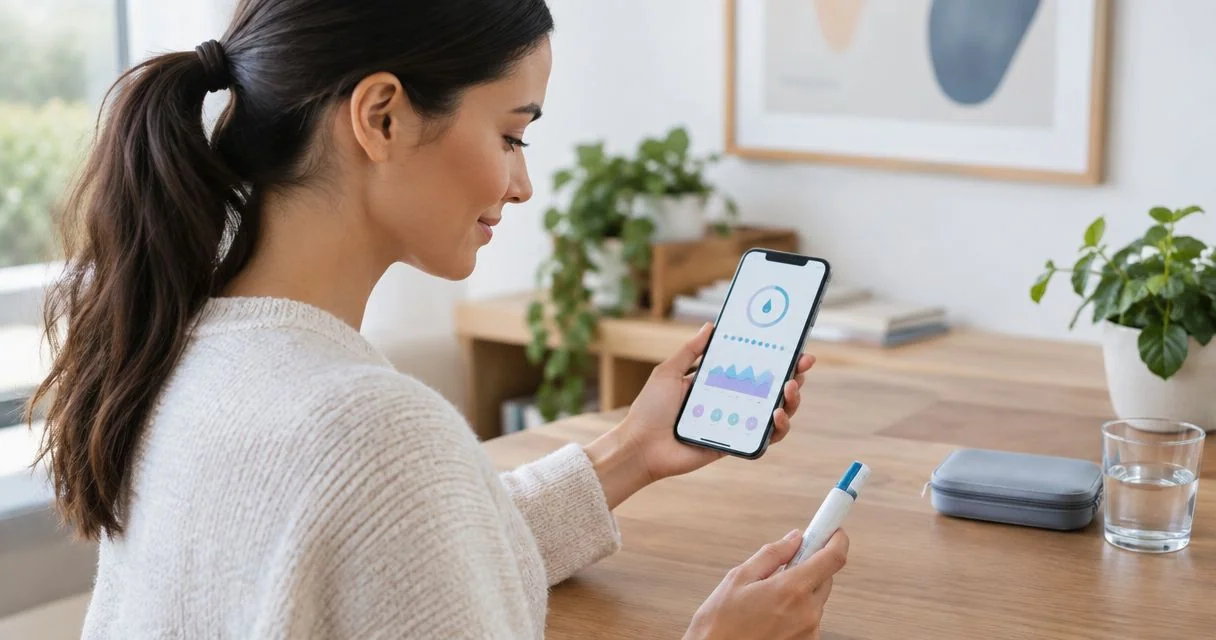
Instead of manually rebuilding your injection reminders each week, set up a GLP-1 dose tracking app to repeat your prescribed schedule and keep a record of completed doses. Apple Health can handle medication reminders and logging on an iPhone, but you still need to confirm when you actually take your medication.
- Apple Health is a practical GLP-1 dose tracking app for iPhone users who want medication reminders and dose logging.
- Automate reminders, not completed-dose records: confirm each injection after taking it.
- VevaRX provides medically supervised weight loss; a tracking app does not replace prescription instructions.
- Keep medication history, weight tracking, and prescription changes separate so your records stay accurate.
Why this matters
A scheduled injection and a completed injection are different events. Your tracker needs to preserve that distinction. Otherwise, a reminder dismissed during a busy shift can leave you unsure whether you took the medication or just cleared the notification.
The right workflow automates the prompt, not the proof. Set the prescribed schedule once, confirm each completed dose, and review the history before discussing treatment with your clinician.
VevaRX is for US adults seeking medically supervised GLP-1 weight loss through an online telehealth platform. Its role is prescription care; the tracking workflow below organizes your personal record. Do not assume your tracker sends information to your clinician automatically.
For your 2026 setup, focus on accurate records rather than extra features. A reminder, a completed-dose log, and a place to record symptoms cover different needs; none should make treatment decisions for you.
Before you start
- Have your current prescription instructions ready. Copy the medication name, prescribed dose, route, and schedule from the instructions you received. Do not reconstruct them from memory or an older bottle.
- Use an iPhone with Apple Health and access to notification settings. Keep your medication instructions nearby while creating the entry. Update your device software before setup if necessary.
- Know the main gotcha: reminders do not verify injections. Apple Health cannot detect that you administered a dose. You must log completion yourself, and notification delivery depends on your device settings.
If the prescribed dose and the dispensing label do not agree, stop setup and ask your prescriber or pharmacist to reconcile them. Do not use the app to choose between conflicting instructions.
Choose what you want to automate
For this 2026 workflow, Apple Health is the recommended starting point for iPhone users who need medication reminders and a personal dose history. Its advantage is medication-specific logging; its limitation is that you still enter completion and verify prescription changes.
| Workflow | Best for | Advantage | Limitation |
|---|---|---|---|
| Apple Health medication reminders and logging | iPhone users who want prompts plus a dose history | Separates the scheduled medication from a logged dose | Requires confirmation after administration |
| Reminder-only workflow | People who need a prompt but maintain their medication history elsewhere | Keeps the reminder task simple | Dismissing a notification does not create reliable evidence of a completed dose |
Choose medication logging when your goal is dose tracking. A reminder-only workflow is useful as a prompt, but it does not answer the question your clinician needs answered: what did you actually take, and when?
Medication record
Create the medication entry before adding weight measurements or other health data. The prescription is the source of truth for this step.
- Open Apple Health and find Medications.
- Select Add a Medication. Enter the medication name from your prescription instructions and review the matching entry carefully.
- Follow the prompts using Next, entering the medication form and strength where requested. If the medication cannot be matched, follow the available manual-entry prompts rather than selecting a different medication.
- Enter the prescribed amount when the app requests dose information. Check that the displayed unit matches the information you intend to record.
- Review the entry before saving. Use Done when the setup is complete.
Expected result: the medication appears in your medication list, with identifying information that agrees with your current instructions.
Medication strength and the amount administered are not interchangeable. A concentration printed on a vial is not necessarily the dose your clinician prescribed. Keep the original instructions accessible, and ask your pharmacist about any field that does not clearly match them.
Do not convert milligrams, milliliters, or syringe units yourself to make an entry fit. A tracking app is a recordkeeping tool, not a dosing calculator. If the available fields do not represent your instructions clearly, get guidance before relying on that entry.
Reminder schedule
Configure the reminder around your prescribed schedule, not around a schedule suggested by the app. GLP-1-related treatments do not all share the same dosing instructions.
- Open the medication's schedule settings. During setup, review Frequency and select the option that matches your prescription.
- For a prescription taken on a particular weekday, use On Specific Days of the Week and select the instructed day. A once-weekly prescription repeats every 7 days; do not apply that interval to a medication with different instructions.
- Set the reminder time to a time you can consistently notice. The reminder time supports your routine; it does not change the prescription's timing requirements.
- In Medications, open Options and review Dose Reminders. Enable medication reminders if they are off.
- Check the iPhone's notification permissions for Health. Also review Focus settings if notifications are being silenced.
- Return to the medication record and verify the next scheduled entry before depending on the reminder.
Expected result: the medication shows the intended schedule, and Health has permission to deliver its reminders.
Start with 1 primary reminder per scheduled dose as an organizational choice. If you need an additional prompt, Apple Health's Follow Up Reminders provides a follow-up notification for an unlogged scheduled medication. A follow-up notification is still not evidence that a dose was missed or taken.
For a 2026 setup check, inspect both the saved schedule and your notification permissions. Seeing the correct weekday in the app does not establish that an alert will reach you while your phone is silenced.
Completion log
This is the step that turns a reminder system into a dose tracking system. Record the injection after administration, not when you prepare supplies or open the notification.
- After taking the prescribed medication, open Medications in Health.
- Select the scheduled medication and use Log where shown.
- Choose Taken only if you actually administered the medication.
- Check the date and time before selecting Done. If you are recording a dose later, make sure the record reflects the administration event rather than simply the moment you opened the app.
- If a scheduled dose was not taken, use Skipped only when that accurately describes the event. Follow your medication's missed-dose instructions or contact your clinician for guidance.
Expected result: your medication history distinguishes completed doses from scheduled doses that were not taken.
The repeatable sequence is straightforward: Prescription check, Reminder setup, Dose confirmation, History review. The app handles the recurring prompt; you supply the confirmation that makes the history meaningful.
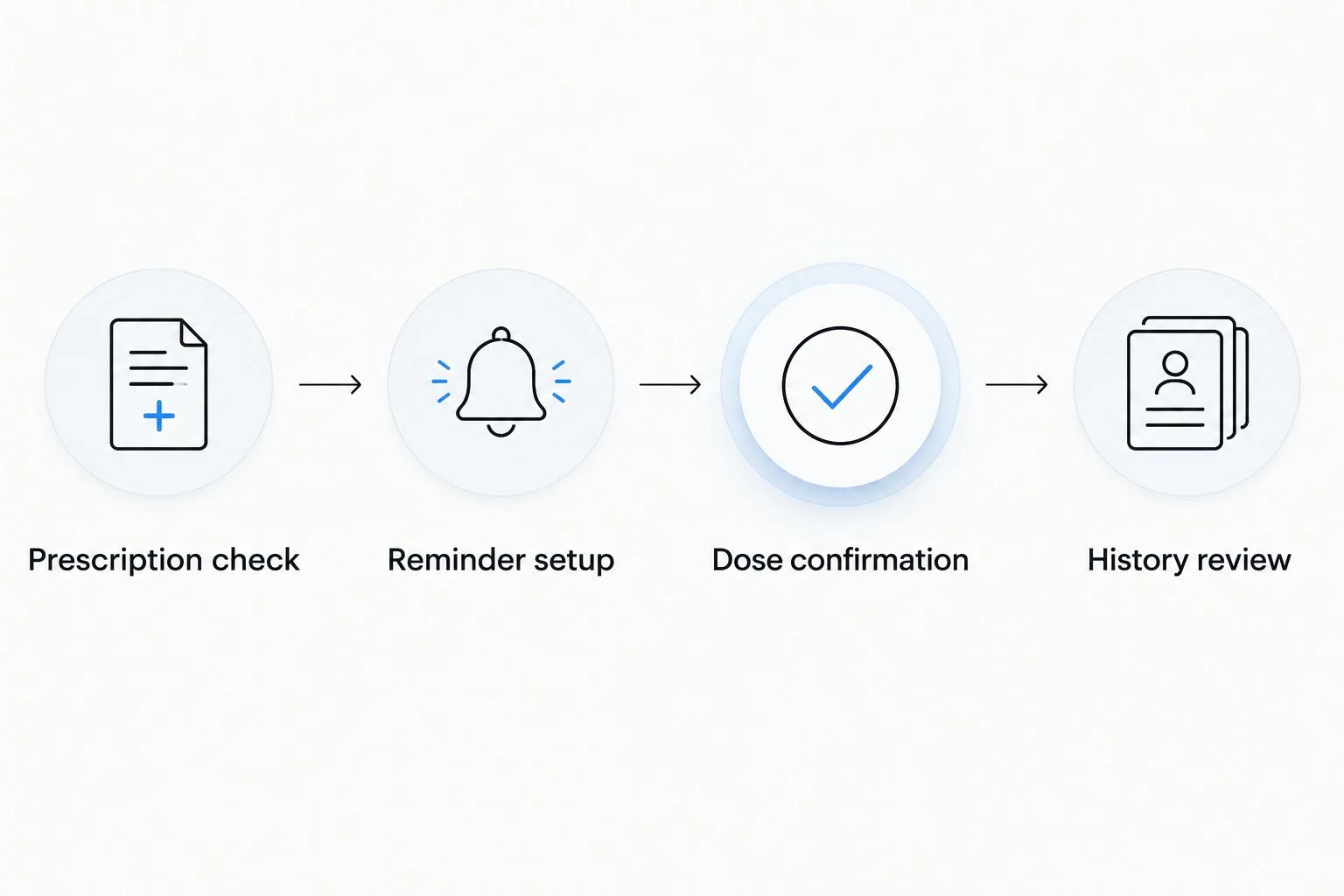
Review the history regularly rather than waiting until an appointment. A review of the previous 4 weeks is a practical organizational window, not a clinical monitoring requirement. Compare uncertain entries against your own contemporaneous records, and identify uncertainty instead of filling gaps with guesses.
Update the workflow when your prescription changes
A second useful workflow is schedule maintenance after a clinician changes your prescription. Keep the old history intact while updating future reminders.
- Read the new prescription instructions and identify what changed: medication, dose, frequency, or timing.
- Open the relevant medication in Medications. Use Edit beside the schedule to update future scheduling information where appropriate.
- If you are changing medications, create the correct medication entry rather than renaming an old entry in a way that obscures its history.
- Review the old schedule so it does not continue prompting you to take a discontinued regimen. Preserve past records instead of deleting them merely to tidy the screen.
- Check the next scheduled reminder and its displayed dose against the new instructions.
Expected result: future prompts match the current prescription, while previous entries remain understandable.
A prescription change should update future reminders, not rewrite past doses. Your history needs to show what happened at the time. Do not change old entries to make them resemble the current regimen.
If you receive GLP-1 prescription care through VevaRX, use the instructions supplied for your treatment rather than a tracker-generated suggestion. This workflow does not establish a connection between Apple Health and your telehealth account.
Troubleshooting
The reminder does not appear
Check Dose Reminders, Health notification permissions, and Focus settings. Then inspect the medication's saved day and time. A correct medication name with an incorrect schedule still produces the wrong reminder.
Do not assume an absent notification means no dose is due. Use your current prescription instructions to establish the schedule while resolving the notification problem.
The history shows a dose you did not take
Open the relevant history entry and correct the inaccurate log. Check whether you selected Taken while clearing a reminder or entered the wrong date when recording an earlier injection.
If you cannot establish whether you took a dose, do not administer another merely to make the record consistent. Ask your pharmacist or prescriber what to do.
The dose field does not match the label
Compare medication strength, prescribed amount, and the unit displayed by the app. These describe different parts of the medication instructions and should not be substituted for one another.
Ask your pharmacist how to represent the prescription accurately. Do not calculate an injection volume from an app field or infer a syringe setting from a medication name.
The old schedule keeps sending reminders
Review the medication list for an outdated schedule or duplicate entry. Update the future schedule or archive a discontinued medication as appropriate, preserving the historical record.
Check the next scheduled entry afterward. Removing an old prompt is only half the fix; the current regimen also needs the correct reminder.
Weight data appears, but medication history does not
Treat weight sharing and medication sharing as separate permissions and capabilities. A connection that transfers body weight does not establish that it transfers dose logs.
Inspect the receiving app's supported data categories and permissions. Do not interpret a successful weight sync as proof that your clinician can see your medication history.
Customize your workflow
Once the dose record is accurate, add context that helps you explain your experience. Keep symptom notes dated, record weight consistently, and prepare questions for your next clinical review. Avoid treating a short-term weight change as an instruction to adjust medication.
For your 2026 record, separate three types of information:
- Medication history: what you took and when.
- Weight measurements: dated measurements recorded consistently.
- Symptom notes: what you experienced and when it started.
If you want to connect weight data, use the guide to connecting Apple Health to your GLP-1 weight loss tracker. Verify which data categories move before relying on the connection.
Prepare a readable medication history for appointments, using a supported export or a manually prepared summary. Include uncertainties explicitly. Ask your care team how they want records shared, and use their approved communication method rather than assuming app access.
FAQ
What's a practical GLP-1 dose tracking app for an iPhone?
Apple Health is a practical starting point for medication reminders and dose logging on an iPhone. Enter your prescribed schedule and confirm each dose after administration; the app does not verify injections automatically.
Can a GLP-1 tracking app automatically know that I took my injection?
A scheduled reminder does not prove that you took an injection. In the Apple Health workflow, you confirm completion yourself so the medication history reflects actual administration.
Can I use Apple Health to track semaglutide or tirzepatide?
You can use Apple Health's medication logging workflow to record a prescribed medication and its schedule. Check every entry against your prescription instructions, and ask your pharmacist about fields that do not match clearly.
Should I mark a dose as taken when I dismiss the reminder?
Mark a dose as taken only after you actually administer it. Dismissing a reminder and completing an injection are separate events, even when they happen close together.
What should I do if I am unsure whether I took my GLP-1 dose?
Contact your pharmacist or prescriber for guidance rather than taking another dose to resolve uncertainty. Review your records, but do not treat an incomplete app history as proof that medication was not taken.
Does connecting Apple Health send my dose history to VevaRX?
Do not assume that connecting Apple Health sends medication history to VevaRX. Confirm supported sharing capabilities and ask your care team how they want you to provide treatment records.
Can my tracking app decide when to increase my GLP-1 dose?
Your tracking app should not decide when to increase your dose. Follow your prescriber's instructions, and update future reminders only after a prescription change.
What should I check in my medication tracker in 2026?
Check the medication identity, prescribed schedule, notification permissions, and accuracy of completed-dose entries. Recheck future reminders whenever your clinician changes the prescription, without rewriting past medication history.
One last thing
An honest gap in your medication history is better than a confident guess. If you cannot verify an entry, keep that uncertainty visible and discuss it with your clinician. A tidy log is not the goal; an accurate record is.
Before closing your 2026 setup, check the next reminder against your prescription one more time. Then make post-injection confirmation part of the routine, rather than expecting the notification to remember for you.
Related guides
This article is for informational purposes only and is not medical advice. Compounded medications are not approved by the FDA and have not been reviewed for safety, effectiveness, or quality. Prescription products require an online consultation with a licensed healthcare provider who will determine if a prescription is appropriate. Individual results vary.