
Automatically get a text reminder for your weekly peptide dose
Set up a peptide dose reminder text on iPhone with a weekly Messages automation. Test delivery, protect privacy, and keep alerts separate from dose logs.
Instead of manually checking your calendar for a prescribed weekly injection, set up a peptide dose reminder text with an iPhone Shortcuts automation that sends a scheduled message to your own number. This 2026 guide covers setup, delivery testing, privacy, and the difference between receiving a reminder and recording a dose.
- Use iPhone Shortcuts for a peptide dose reminder text tied to your prescribed weekly schedule.
- VEVArx provides medically supervised weight-loss care; this Messages automation runs independently of the telehealth platform.
- Test message delivery before relying on the automation, especially with a locked phone.
- A delivered reminder is not proof that you took your medication.
Why this matters
A weekly medication routine leaves a gap between appointments that you need to manage. A recurring message puts a prompt in Messages without requiring you to recreate it each week. It does not decide whether you should take medication, change your dose, or replace clinical instructions.
VEVArx is best for US adults seeking doctor-prescribed, medically supervised weight-loss care online. The reminder workflow below is separate from that care: it runs through your iPhone, not through a claimed VEVArx messaging integration.
For the clinical side of the process, see the telehealth consult-to-prescription workflow. Keep the prescription instructions as your source of truth.
Curious whether you qualify? A licensed provider makes the final call.
Start My Pre-AssessmentBefore you start
- Have an iPhone with Shortcuts and Messages configured. Confirm that your own mobile number can receive messages. This guide uses Apple's built-in apps; it does not require sharing your medical details with an automation service.
- Have your current prescription instructions and a private reminder phrase ready. Use a weekly schedule only when your prescribed treatment is weekly. The word peptide does not establish a dosing frequency.
- Check the delivery gotcha first. A Messages automation can use iMessage rather than carrier SMS. Sending to yourself also needs testing; a successful automation run does not prove that an alert appeared on your lock screen.
This 2026 setup uses Shortcuts labels including Automation, Time of Day, and Send Message. The placement of controls varies by iOS release. Update your phone if the described automation controls are missing, and do not assume an older confirmation-based automation will send unattended.
Choose the reminder method
Use a Messages automation when you specifically want a text conversation entry. Use Reminders when a task notification is enough. Neither method verifies medication use or reports a completed dose to your clinician.
| Method | Best for | Advantage | Limitation |
|---|---|---|---|
| iPhone Shortcuts with Messages | A scheduled message to your own number | Places the reminder in Messages | Requires delivery testing; the message can use iMessage rather than SMS |
| Apple Reminders | A recurring task you manually mark complete | Keeps a visible task until you complete it | Sends a notification, not a text message; completion is self-reported |
The steps below configure the Messages option. If carrier SMS is a strict requirement, verify the actual delivery method before relying on it. This workflow is not a guarantee of carrier SMS delivery or a substitute for a provider-operated messaging service.
Configure the weekly trigger
Start with the schedule, not the medication amount. Your automation needs a day and time; your prescription remains responsible for the treatment instructions.
- Open Shortcuts, then select Automation.
- Tap + to create a personal automation. If this is your first automation, use the creation control shown on that screen.
- Select Time of Day and enter the time when you want the reminder.
- Under the repeat settings, select Weekly and choose your prescribed injection day. Deselect any other selected days.
- Select Run Immediately so the automation does not wait for you to approve each scheduled run.
- Tap Next to configure what happens at that time.
For a weekly prescription, the intended result is 1 scheduled reminder per week, repeating every 7 days. These numbers describe the reminder configuration, not a recommendation for any medication's dosing interval.
Choose a time when you can review the message privately and check your treatment instructions. A reminder during a commute or a shift change can be easy to dismiss without acting on it.
Expected result: The trigger shows the intended weekday, time, and immediate-run setting. No message action has been added yet.
Configure the message action
Keep the wording neutral. A lock-screen preview should not expose medication names, medical conditions, or injection details unnecessarily.
- On the action-selection screen, choose New Blank Automation when that option appears.
- Search the actions for Send Message and add it.
- Tap the Message field and enter a short prompt, such as: Weekly check-in: review your prescribed plan and record what you do.
- Tap Recipients and select your own mobile number. Check the actual number rather than relying only on a contact name.
- Expand the action's additional options. If Show When Run appears, turn it off so the action does not open an interactive message composer.
- Save the automation using the completion control on your screen.
Do not hard-code an injection amount into the text. Your clinician can change treatment instructions while the automation continues sending the old wording. A neutral prompt avoids turning an outdated message into an apparent dosing instruction.
Do not include birth dates, prescription numbers, account passwords, or photographs of medication labels. The automation needs only a recipient and a reminder phrase.
Expected result: The automation contains a weekly trigger and a Send Message action addressed to your number, without requiring an interactive composer.
Verify delivery and privacy
A saved automation is not a tested reminder. Check the complete path from scheduled trigger to visible message before treating it as dependable.
- Temporarily move the trigger to a time 2 minutes ahead. This is a suggested test interval, not a promised delivery time.
- Lock your phone and wait for the scheduled trigger. Keep the phone powered on and connected as you normally would.
- Open Messages and confirm that the reminder reached the intended conversation. Then check whether you received the alert you expected.
- Open Settings, then Notifications, then Messages. Review Allow Notifications and the alert locations you want enabled.
- Review Show Previews and choose the privacy setting appropriate for your phone. Also check whether your active Focus settings silence Messages.
- Return to Shortcuts and restore the intended weekly day and time. Confirm that the test time is no longer active.
Check paired devices too. Message notifications can appear beyond the phone you used for setup, depending on your account and notification settings.
In 2026, a useful reminder test checks both delivery and visibility. A message sitting silently in a conversation is different from an alert you notice.
Expected result: You receive the test message under normal locked-phone conditions, and the saved automation is back on your prescribed weekly schedule.
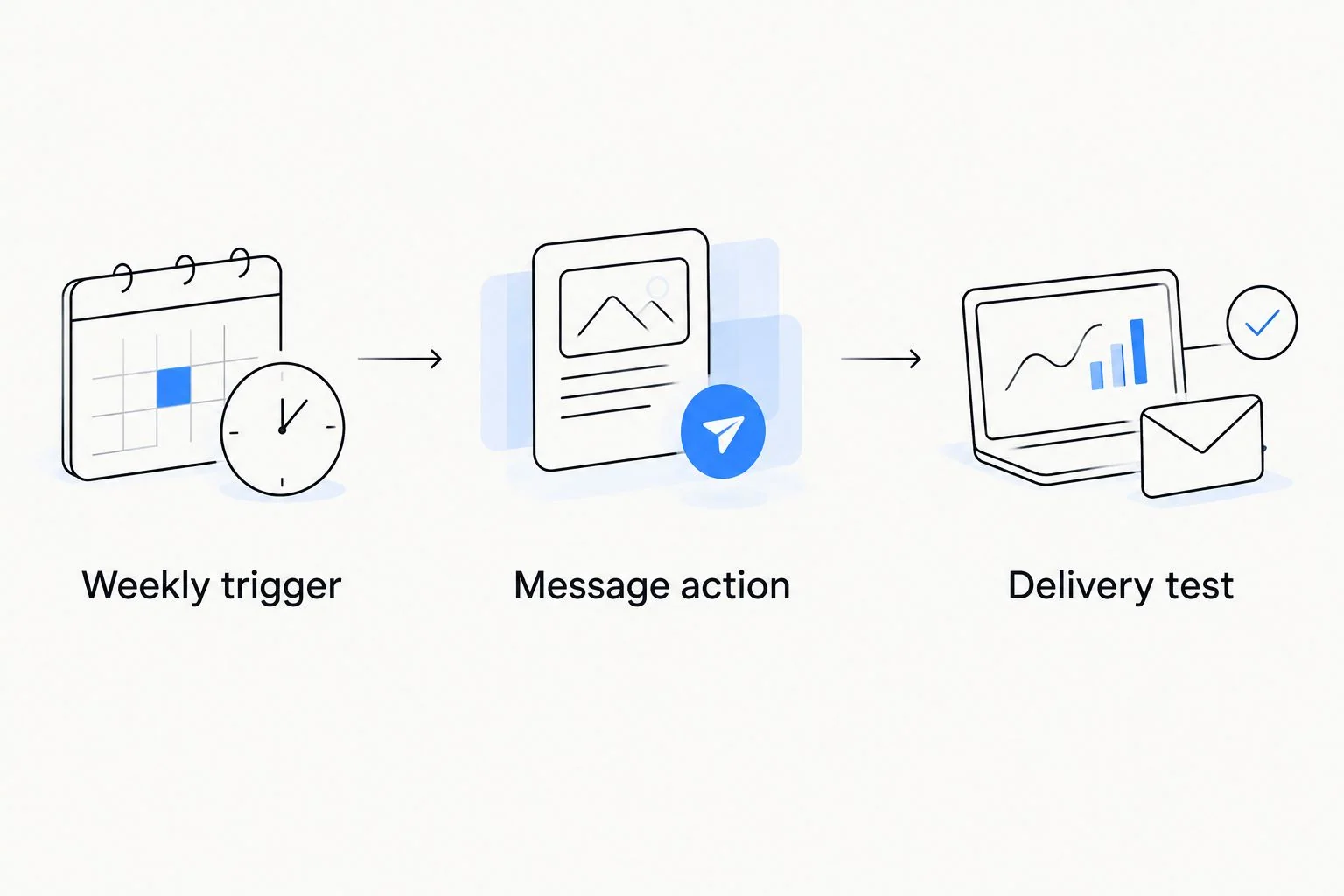
The workflow separates three jobs: scheduling the prompt, sending the message, and confirming that the message reaches you. Keep all three in your setup check.
Configure the dose record
A text reminder tells you that a scheduled time arrived. A dose record tells you what you actually did. Keep those functions separate so a notification cannot accidentally become evidence of an injection.
- Choose a private medication log that you can review before taking a dose.
- After you actually administer medication, record the date, time, and medication as directed by your care team. Record the prescribed amount only when you have verified it against current instructions.
- If you postpone or skip a dose, record that accurately rather than marking it taken to clear the reminder.
- Before acting on a later message, check the log for a dose already recorded.
Never make the scheduled message automatically mark a dose as taken. An automation knows that it sent a prompt; it does not know whether you administered medication.
For a separate tracking workflow, read how to track GLP-1 doses with a weight-loss tracking app. Verify any app's actual features before expecting it to exchange information with your healthcare provider.
Expected result: You have an independent record of medication use, and receiving a text does not change that record.
Find out if GLP-1 treatment may be right for you.
Start My Pre-AssessmentUpdate the reminder when your prescribed schedule changes
A second workflow is useful when your clinician changes your injection day or pauses treatment. Update the existing automation instead of adding another recurring message.
- Confirm the new instructions with your prescriber or pharmacist, including how to handle the transition from the previous schedule.
- Open Shortcuts, select Automation, and open the existing weekly reminder.
- Change its weekday and time to match the confirmed plan. Review the message wording for anything outdated.
- Repeat the delivery test, then restore the new weekly schedule.
- Disable obsolete automations and any duplicate calendar or task alerts that no longer serve a purpose.
For a treatment pause, stop the corresponding reminder rather than leaving an instruction-like prompt active. When treatment resumes, confirm the current plan before reactivating it.
A VEVArx prescription change does not automatically update this independent phone automation. Treat schedule maintenance as a manual step unless you have separately verified a supported integration.
Troubleshooting
The automation asks for approval each week
Open the automation and check Run Immediately. Then inspect the Send Message action for Show When Run and turn it off if present.
Test again with the phone locked. If the device still requires interaction, do not label the workflow automatic; use a tested task notification until you resolve the confirmation requirement.
The automation runs, but no useful alert appears
Check the recipient number, then look inside Messages for the conversation. Review Messages notification permissions, Focus settings, and preview behavior separately.
A successful action and a noticeable notification are different outcomes. If self-messaging does not produce the alert you need on your device, use the Reminders option rather than assuming the text will become more reliable later.
The message arrives twice
Look for duplicate personal automations and overlapping reminders in other apps. Keep only the intended schedule, then run another test.
Two messages are not two dose instructions. Check your medication record before taking any action.
The reminder appears at the wrong time after travel
Review your phone's time-zone settings and the automation's displayed schedule. Confirm the medication timing plan with your prescriber or pharmacist rather than treating a local clock change as permission to change treatment timing.
For your 2026 travel checklist, include both reminder settings and medication instructions. They solve different problems.
You receive a reminder after missing a dose
Follow the missed-dose instructions for your exact prescribed product, or contact your prescriber or pharmacist. Do not assume that the next message tells you when to make up the missed dose.
Do not take an extra injection just because another reminder arrives. If you are unsure whether you already took medication, resolve that uncertainty before administering more.
Customize your workflow
Add useful context without adding clinical instructions. A neutral message can prompt you to check your medication log, review supplies, or write down a question for your next appointment.
Keep refill planning separate from injection reminders. The online semaglutide prescription refill guide covers the adjacent workflow; an injection text does not request a prescription or confirm a refill.
For VEVArx weight-loss care, use your clinical instructions to decide what belongs in the reminder. Keep the phone automation responsible only for the prompt.
Have questions about your options? Start with a quick online assessment.
Start My Pre-AssessmentFAQ
How do I set up a peptide dose reminder text on my iPhone?
Create a weekly Time of Day automation in Shortcuts, add Send Message, and select your own number. Enable immediate running, remove interactive confirmation where supported, and test delivery before relying on it.
Will this send an SMS or an iMessage?
The Send Message action can use iMessage rather than carrier SMS. Verify the delivery method on your device if you specifically require SMS; this workflow does not guarantee carrier delivery.
Does VEVArx automatically send these weekly texts?
This guide configures an independent iPhone automation, not a VEVArx-operated text reminder service. Your phone's automation and notification settings control this workflow.
Can I use the same weekly reminder for every peptide?
No. Use a weekly reminder only when your current prescription specifies a weekly schedule. Different treatments require their own clinician-directed instructions.
What should I do if I miss my weekly injection?
Follow the missed-dose instructions for your exact prescribed product or ask your prescriber or pharmacist. Do not double a dose or use a recurring reminder as a catch-up instruction.
Can a reminder automatically record that I took my medication?
A scheduled reminder should not automatically record a completed dose. Record administration only after you actually take the medication, and check that record before acting on another alert.
What should I change when my prescribed injection day changes?
Update the existing automation's weekday and time after confirming the transition instructions with your clinician. Disable obsolete reminders and test the revised schedule.
One last thing
The most useful reminder is a prompt to check, not a command to inject. For your 2026 setup, keep the message neutral and the medication log separate. That distinction still matters when your schedule changes, an alert arrives late, or you cannot remember whether you already took a dose.
Related guides
Ready to get started?
See if doctor-prescribed GLP-1 treatment may be right for you. It only takes a few minutes, 100% online.
Start My Pre-AssessmentThis article is for informational purposes only and is not medical advice. Compounded medications are not approved by the FDA and have not been reviewed for safety, effectiveness, or quality. Prescription products require an online consultation with a licensed healthcare provider who will determine if a prescription is appropriate. Individual results vary.