
How to connect Fitbit to your GLP-1 weight loss progress
Connect Fitbit GLP-1 weight loss tracker data with verified app support or a manual summary. Check permissions, prevent duplicates, and share progress.
Instead of manually rebuilding your activity history before every GLP-1 appointment, sync Fitbit to its app, record weight consistently, and share a dated progress summary with your prescriber. This 2026 guide separates that dependable workflow from automatic connections that require explicit support from your tracking app.
- To connect Fitbit GLP-1 weight loss tracker data, verify compatibility first; otherwise, share a dated manual summary.
- Fitbit tracks activity and weight records, not whether your GLP-1 medication or dose is appropriate.
- VEVArx offers medically supervised GLP-1 weight loss; a direct Fitbit connection is not established here.
- Use one weight source, check measurement dates, and keep medication and symptom notes alongside your activity summary.
Why this matters
A synced watch does not mean your prescriber receives your data. Fitbit can hold your activity history while your weight-loss app and clinical record remain separate. You need to verify each connection rather than assume information travels between them.
VEVArx offers online, doctor-prescribed GLP-1 weight-loss treatment for US adults. VEVArx is for adults seeking medically supervised GLP-1 weight loss, not a substitute for a fitness tracker. No direct Fitbit integration is established in the information supporting this guide.
For your 2026 tracking setup, separate three jobs: collecting measurements, organizing progress, and making treatment decisions. Fitbit supports the first job; a summary supports the second. Your prescriber handles the third.
Curious whether you qualify? A licensed provider makes the final call.
Start My Pre-AssessmentBefore you start
- Account and device access: Have your Fitbit device, its paired phone, and access to the Fitbit app. Confirm that your latest activity appears before connecting another service.
- Measurements and treatment notes: Have a scale, your current prescription instructions, and somewhere private to record weight, injection dates, and symptoms. Use only measurements you actually collected.
- Compatibility check: Confirm that your destination app explicitly supports Fitbit or a compatible health-data connection. Android Health Connect and Apple Health are different systems; support for one does not establish support for the other.
The non-obvious gotcha: permission to read steps does not mean permission to read weight. Check each supported data category and its direction. An app can receive activity without receiving weight, and a successful connection can still leave your progress chart incomplete.
In 2026, use the instructions for your installed app version. The steps below name Today, a Fitbit app destination, but do not invent a universal connection button for third-party trackers.
Choose your tracking route
Pick the route your actual apps support, not the one with the most automation. A manual summary remains useful when no verified connection exists.
| Tracking route | Best for | Advantage | Limitation |
|---|---|---|---|
| Fitbit app plus a manual summary | People without a verified app connection | Keeps the source and dates visible | Requires you to copy or share selected information |
| Direct Fitbit connection | People whose destination app explicitly lists Fitbit | Can reduce repeated entry for supported categories | Coverage and sync behavior depend on the destination app |
| Android Health Connect route | Android users whose apps support the required data categories | Can provide a shared permission layer | Both apps must support the needed category and direction |
Start with the manual route unless you can verify the automatic route. Automation is useful only when the correct measurement reaches the correct destination. A connected-account badge alone is not proof.
Fitbit synchronization
This configuration unit establishes your source record. Complete it before troubleshooting a weight-loss tracker.
- Open the Fitbit app using the account associated with your device. Keep the device nearby and Bluetooth enabled on your phone.
- Open Today and check whether the activity shown matches your recent device use. Follow the app's device-sync instructions if the record is stale.
- Check the date attached to the information. Yesterday's complete record and today's partial record answer different questions.
- Review any weight entries separately. Wearing a Fitbit does not measure body weight; weight must come from an entered measurement or a supported scale connection.
- Choose the measurement categories you actually intend to share. Steps, sleep records, and weight do not need to travel together.
Expected result: Your Fitbit app shows recent, correctly dated activity, and you know where its weight entries originate. If the source record is wrong, stop here rather than copying the error into another app.
Do not fill a missing day with a guessed step count or weight. Mark the gap instead. An incomplete but accurate history is more useful than a complete-looking history built from estimates.
Weight and treatment records
This configuration unit creates a progress record that does not depend on an undocumented integration. Keep measurements separate from medication decisions.
- Choose one primary source for weight: your scale measurement recorded in Fitbit, or a separate private log. Avoid treating duplicate copies as new measurements.
- Record the measurement date, weight, and unit. Use either pounds or kilograms consistently, and check the destination app's unit before copying anything.
- Record injection dates and the dose exactly as prescribed in your treatment log. Do not infer a dose from a device reading or fitness score.
- Add brief symptom notes when relevant, including when symptoms started and whether they affect eating, drinking, or normal activity.
- Use a suggested review window of 7 days to organize activity and weight entries. This is an organizational choice, not a required medical monitoring schedule.
Expected result: You can distinguish a measured weight, an activity record, and a medication entry without guessing what any field represents.
A practical record needs only a few clear headings. Use the following structure without adding sensitive details that your clinician does not need:
| Record field | What to enter | What to avoid |
|---|---|---|
| Measurement date | Date the measurement occurred | Date you happened to copy it |
| Weight | Measured value and unit | Estimated or remembered values |
| Activity | Fitbit record for the stated period | Mixing a partial day with a full day |
| Medication | Actual administration and prescribed dose | An app-generated dose suggestion |
| Symptoms | Description and timing | Assuming the tracker identifies the cause |
Destination connection and verification
This configuration unit applies only when your chosen tracker documents a Fitbit connection. If it does not, use the manual summary route instead.
- Open the destination app's current help instructions and confirm that Fitbit is a named supported source. Do not interpret a generic health-data feature as Fitbit support.
- Follow that app's documented connection process. Authenticate only through its legitimate account authorization flow; never give a third-party support contact your Fitbit password.
- Review the requested permissions before approving them. Allow only the categories needed for your tracking purpose.
- Compare 1 dated weight entry in the source and destination. Check its value, unit, and measurement date rather than just looking for a connected status.
- Compare a completed day's activity separately. Confirm which source the destination displays and whether it combines data from multiple devices.
- If the value or date differs, pause the connection workflow and resolve the discrepancy before relying on the chart.
Expected result: You have verified an actual transferred record, or you have established that manual sharing is the appropriate route. Neither outcome requires a direct VEVArx Fitbit connection.
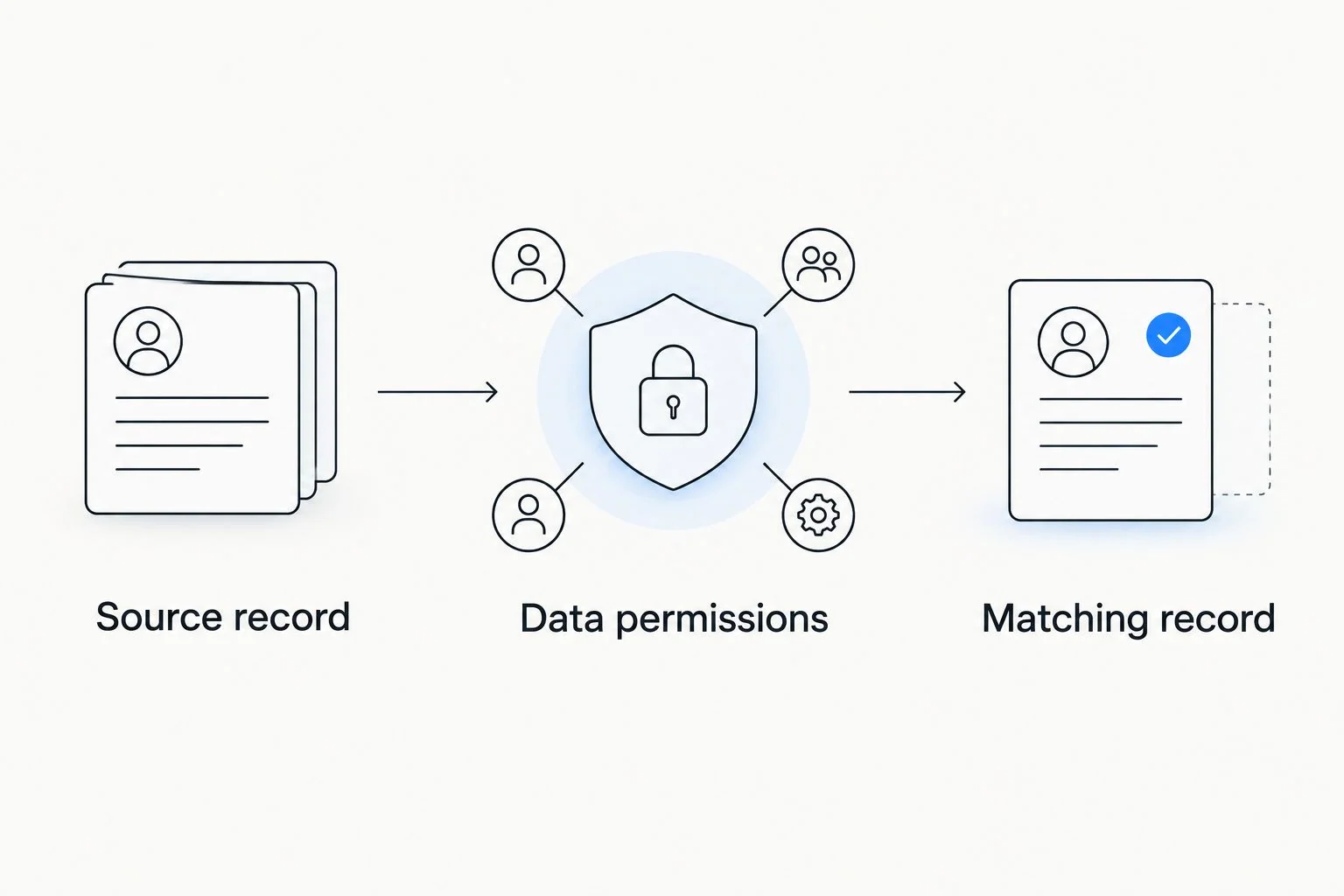
The verification sequence is simple: source first, permission second, matching record third. Repeat it whenever you replace a phone, reconnect an account, or change the app receiving your data.
Clinician summary
This configuration unit turns tracking into something useful at a medical review. It does not assume your clinician can open your Fitbit account.
- Prepare 1 summary per week if that cadence suits your treatment plan. Follow a different schedule if your prescriber requests one.
- State the date range and identify missing measurements. Include weight records, relevant activity changes, injection dates, and symptom notes.
- Ask your clinical team how they accept information. Use its approved communication method rather than posting health records publicly or sending them to an unverified address.
- Ask the team to confirm receipt when the information is needed for an appointment. Sending a summary does not prove it entered your clinical record.
- Keep treatment questions explicit: ask about tolerability, measurement interpretation, or follow-up needs. Do not let a fitness app decide whether to increase medication.
Expected result: Your prescriber receives a readable, dated account rather than an unexplained dashboard screenshot.
For VEVArx GLP-1 weight-loss care, confirm the appropriate sharing method with the clinical team. A fitness-data connection and a medical communication channel serve different purposes.
Find out if GLP-1 treatment may be right for you.
Start My Pre-AssessmentAlternative: update your tracker through Android Health Connect
A second workflow exists when Fitbit and your destination app support the required Health Connect data categories. Health Connect is a permission layer, not a guarantee of complete Fitbit data transfer.
For this 2026 variant, first check both apps' current documentation. Confirm that the source can write the category you need and that the destination can read it. Weight support does not establish support for every activity or sleep category.
Then review the relevant permissions in Health Connect and perform the same dated-record check used above. Test weight and activity separately. If the destination does not receive the required category, keep that part of your summary manual.
On an iPhone, do not substitute these Android instructions or assume Fitbit automatically supplies Apple Health. Choose a documented route for your specific apps, and review the privacy implications before adding an intermediary.
Troubleshooting
Fitbit shows old activity
Open the Fitbit app and confirm that the device itself has synced. Check Bluetooth, account selection, and the device's connection instructions before changing anything in your weight-loss tracker. A destination cannot import a record that has not reached its source app.
The apps are connected, but weight is missing
Check whether weight is supported and permitted, then confirm that an actual weight entry exists in the source. Steps permission cannot substitute for weight permission. If weight transfer is unsupported, record the measurement manually with its original date.
Weight or activity appears twice
Inspect the record sources. A phone, wearable, scale, and intermediary app can contribute overlapping records. Select one primary source where the destination allows it, and review duplicates before deleting anything from the original history.
The measurement lands on the wrong day
Compare the measurement timestamp, phone time zone, and destination display. Travel and time-zone differences can shift how records are grouped. Preserve the original measurement date in your summary rather than silently changing the value.
Your clinician cannot see the dashboard
Confirm the approved sharing method with the clinical team. Personal tracking permissions do not automatically grant a clinician access. Send a readable summary through the accepted channel rather than repeatedly reconnecting Fitbit.
Customize your workflow
Keep the scope small until the basic record works. Add food notes, sleep context, or a scale connection only when that information answers a question you and your prescriber actually have.
For your 2026 routine, review privacy permissions whenever you stop using an app. Disconnect access you no longer need, and check the service's data-deletion instructions separately; revoking future access is not the same action as deleting previously collected records.
Do not use estimated calories burned to set your medication dose or compensate for symptoms. A tracker helps organize observations. It does not assess whether reduced intake, dizziness, or persistent vomiting is medically acceptable.
Contact your clinician about concerning symptoms. Seek urgent medical care for severe or persistent abdominal pain, especially with vomiting, or other severe symptoms rather than waiting for a weekly tracking review.
Have questions about your options? Start with a quick online assessment.
Start My Pre-AssessmentFAQ
How do I connect Fitbit to a GLP-1 weight-loss tracker?
Use a destination app that explicitly supports Fitbit, approve the required data permissions, and verify a dated measurement after connecting. If no supported connection exists, share a manual summary of Fitbit activity and measured weight.
Does VEVArx automatically receive my Fitbit data?
A direct Fitbit integration with VEVArx is not established in this guide. Ask the clinical team which sharing method it accepts before assuming that personal tracking data reaches your medical record.
Can Fitbit measure my weight without a scale?
No, wearing a Fitbit does not measure your body weight. Enter a scale measurement or use a supported scale connection, and preserve the measurement date and unit.
Can I use Health Connect for Fitbit tracking in 2026?
You can use Health Connect when Fitbit and your destination app support the required data category and direction. Verify a transferred record because connection status alone does not establish that weight or activity arrived correctly.
Why are my Fitbit steps syncing but not my weight?
Steps and weight use different data categories and permissions. Check weight support, weight permission, and whether a weight entry exists in the source before reconnecting accounts.
Should I change my GLP-1 dose based on Fitbit activity?
No, Fitbit activity is not a basis for changing a prescribed GLP-1 dose. Follow your prescription and discuss treatment changes with your prescriber.
What should I share with my weight-loss clinician?
Share dated weight measurements, relevant activity changes, actual injection dates, and symptoms through the clinical team's accepted channel. Identify missing data and ask specific treatment questions rather than sending an unexplained chart.
One last thing
The most useful connection is a measurement you can trace back to its source. Before your next review, choose one weight entry and confirm its value, unit, date, and origin across your records. That small check catches errors a polished dashboard can hide.
Related guides
Ready to get started?
See if doctor-prescribed GLP-1 treatment may be right for you. It only takes a few minutes, 100% online.
Start My Pre-AssessmentThis article is for informational purposes only and is not medical advice. Compounded medications are not approved by the FDA and have not been reviewed for safety, effectiveness, or quality. Prescription products require an online consultation with a licensed healthcare provider who will determine if a prescription is appropriate. Individual results vary.